
RecoveryRobot® Partition Recovery
Lost Partition Recovery Software – Free Download for Windows
Recover files from partitions that were accidentally deleted, lost, or no longer visible in Windows.
RecoveryRobot scans your drive for lost or deleted partitions, then lets you browse and recover files that may still remain on them.
Windows 11 & 10 · Scan before recovery · Preview recoverable files where supported
Important: Stop using the affected drive. Do not create a new partition, format unallocated space, reinstall Windows, or save new files to the drive. These actions may overwrite data that could still be recoverable.
Can Data from a Lost Partition Be Recovered?
In many cases, yes—especially if the partition was deleted or lost recently and the drive has not been used heavily afterward.
When a partition disappears, the files stored inside it may still remain on the drive even though Windows can no longer access them normally.
Recovery Is More Likely When
- The partition was accidentally deleted
- The partition suddenly disappeared after a system or disk error
- The space now appears as unallocated in Windows
- The drive is still detected normally
- No new partition has been created in the same space
- The drive has not been formatted or heavily used since the partition was lost
Recovery May Be More Difficult When
- A new partition has been created over the same area
- The drive has been reformatted and reused
- Windows or other software has been reinstalled on the affected drive
- New files have overwritten the original data
- The drive has physical or electrical damage
Lost Partition Does Not Always Mean Lost Files
A missing partition can prevent Windows from showing the files even when some of the underlying data is still present.
RecoveryRobot scans the drive for lost or deleted partition structures and recoverable files so you can check what may still be available.
If the drive is still detected by Windows, stop using it and scan it before making further changes.
Free Download for WindowsHow to Recover Files from a Lost or Deleted Partition
RecoveryRobot uses a two-stage scan: first to locate the missing partition, then to find recoverable files inside it.
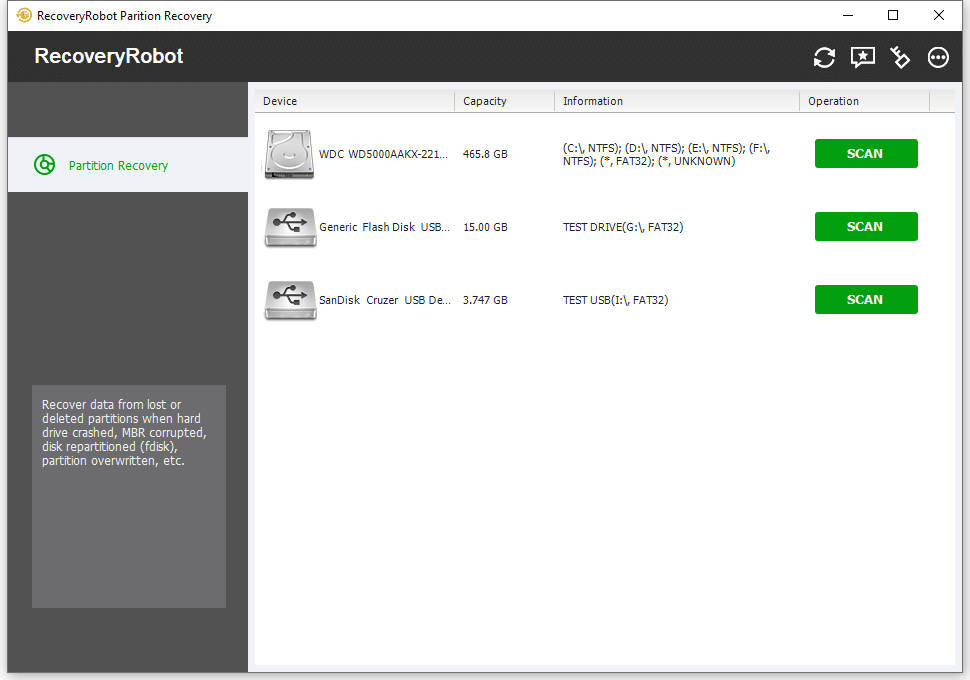
1. Select the Physical Drive
Open RecoveryRobot and choose the hard drive or SSD that contained the lost or deleted partition.
Do not create a new partition or format the unallocated space before scanning.
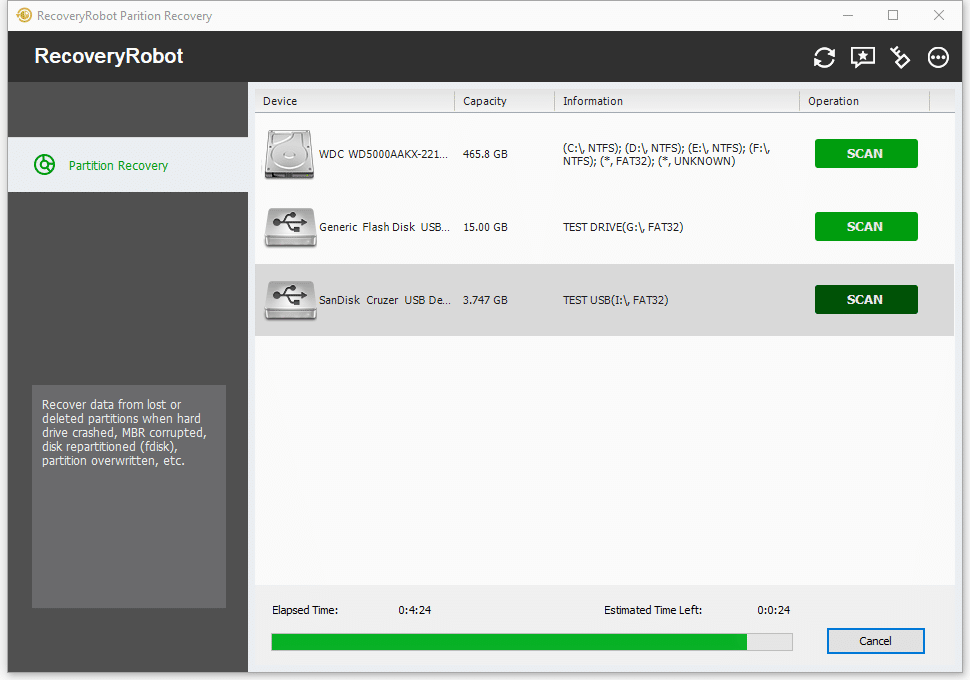
2. Scan for the Lost Partition
RecoveryRobot scans the drive for partition information that may still remain.
When a lost or deleted partition is found, select it to continue with a file scan.
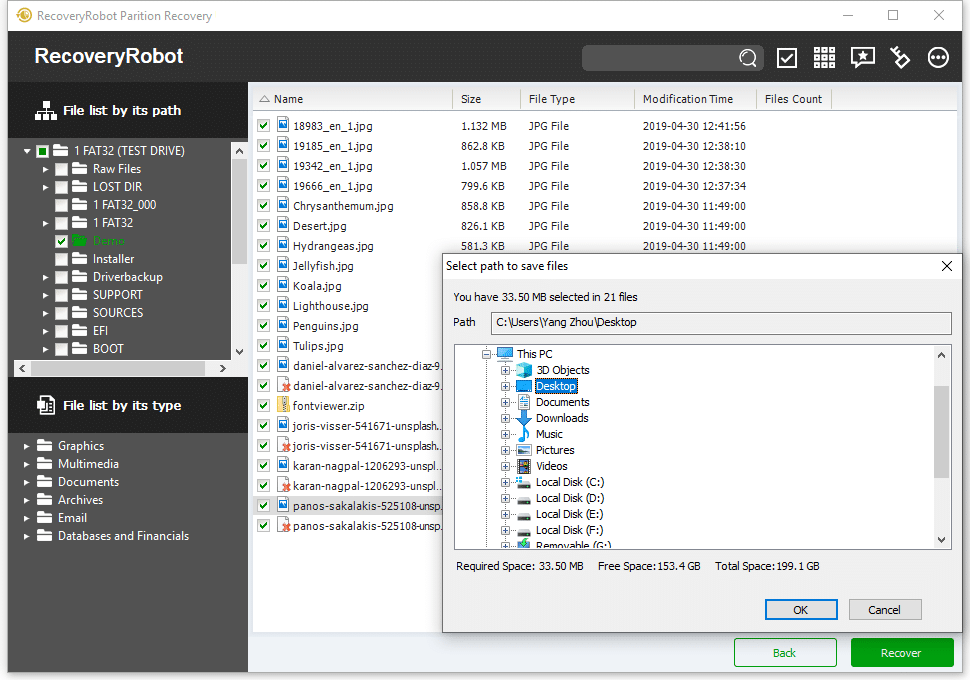
3. Preview and Recover Your Files
Scan the detected partition for recoverable files, preview supported file types, and select what you want to restore.
Save recovered files to a different drive or storage device to avoid overwriting other recoverable data.
Free Download for WindowsFind the partition · Scan for files · Recover to a different drive
What Happened to Your Partition?
Choose the situation that best matches what you see in Windows.
I Accidentally Deleted a Partition
A partition was removed by mistake and the space now appears as unallocated.
Recover a Deleted Partition →
A Partition Suddenly Disappeared
A drive letter or partition that was previously available is no longer visible in File Explorer.
Find a Lost Partition →
The Partition Shows as RAW
Windows detects the partition, but the file system appears as RAW or the drive cannot be opened normally.
Recover Files from a RAW Partition →
Windows Shows Unallocated Space
Disk Management shows unallocated space where one of your partitions used to be.
Recover from Unallocated Space →
I Formatted the Wrong Partition
The partition still exists, but the previous files disappeared after formatting.
Recover a Formatted Partition →
I’m Not Sure What Happened
If the physical drive is still detected but you are unsure why the partition disappeared, start by scanning the drive for lost partitions.
Scan for Lost Partitions →
What Not to Do After a Partition Is Lost
If a partition disappears or becomes unallocated, avoid making changes to the affected drive until you have checked whether the files can still be recovered.
Don’t Create a New Partition
Creating a new partition in the same space can overwrite partition information and file data that may still be recoverable.
Don’t Format the Unallocated Space
If Windows asks you to format the drive or create a new volume, cancel the operation if you still need the files.
Don’t Reinstall Windows on the Same Drive
Installing Windows or other software can write large amounts of new data and overwrite files from the lost partition.
Don’t Copy New Files to the Drive
Any new data written to the affected disk can reduce the amount of old data that remains recoverable.
Don’t Run Repair Tools First
Disk-repair or partition-modification utilities can change the file system or partition structure.
If the files are important, scan for recoverable data before attempting repairs.
Do This Instead
Stop using the affected drive, connect it to a working Windows system if necessary, and scan the physical drive for lost partitions before making further changes.
Scan for Lost PartitionsWhat Files Can Be Recovered from a Lost Partition?
If the original data has not been overwritten, RecoveryRobot may be able to recover many common file types from lost, deleted, RAW, or inaccessible partitions.
Documents
Recover work and personal files such as documents, spreadsheets, presentations, PDFs, and text files.
Examples include DOC/DOCX, XLS/XLSX, PPT/PPTX, PDF, and TXT.
Photos
Recover photos and image files stored on the missing partition.
Examples include JPEG, PNG, TIFF, BMP, GIF, and supported camera RAW formats.
Videos
Recover video files that were stored on the lost or deleted partition.
Examples include MP4, MOV, AVI, MKV, and other supported video formats.
Audio
Recover music, recordings, and other supported audio files.
Examples include MP3, WAV, WMA, and AAC.
Archives and Other Files
RecoveryRobot can also scan for ZIP archives and other supported file types that may still remain on the partition.
Recovery results depend on the condition of the drive and whether the original data has been overwritten since the partition was lost.
When Partition Recovery Software May Not Help
Partition recovery software is designed for logical data-loss problems. It may not be effective when the drive has serious physical damage or the original data has already been overwritten.
The Drive Is Not Detected
If the physical drive does not appear in Windows or Disk Management at all, RecoveryRobot cannot scan it.
Try another cable, port, enclosure, or computer first to rule out a connection problem.
The Drive Has Physical Damage
Unusual noises, repeated disconnects, electrical damage, or other hardware problems may require professional data recovery rather than software.
A New Partition Was Created Over the Lost One
Creating and using a new partition can overwrite partition information and files from the previous partition.
The Drive Was Reformatted and Reused
Formatting followed by continued use increases the chance that the original files have been replaced by new data.
Windows or Software Was Reinstalled
Reinstalling an operating system or applications can write large amounts of data to the affected disk and overwrite recoverable files.
The Original Data Has Been Overwritten
Recovery software cannot restore file data once the same storage sectors have been overwritten with new information.
If the physical drive is still detected and has not been heavily modified since the partition disappeared, scanning it is the best way to check what may still be recoverable.
Lost, Deleted, Formatted, RAW, or Unallocated: What’s the Difference?
A partition can become inaccessible in several different ways. Understanding what happened helps you avoid making changes that could reduce your chances of recovering the files.
Lost Partition
A partition is lost when it no longer appears normally in Windows, even though the data may still remain on the drive.
This can happen after partition-table errors, system problems, interrupted disk operations, or other logical failures.
What you may see: A previously available drive letter or partition has disappeared.
Deleted Partition
A partition is deleted when its partition entry has been removed, intentionally or accidentally.
The space may appear as Unallocated in Disk Management, while some of the original files may still remain until they are overwritten.
What you may see: Unallocated space where the partition used to be.
Formatted Partition
The partition still exists, but formatting has created or rebuilt its file system, and the previous files are no longer visible normally.
Recovery may still be possible if the original data has not been overwritten.
What you may see: The partition opens normally but appears empty or contains none of your previous files.
RAW Partition
A RAW partition is detected by Windows, but Windows cannot recognize or properly read its file system.
Do not format the partition if you still need the files.
What you may see: Windows reports the file system as RAW or asks you to format the drive before using it.
Unallocated Space
Unallocated space is disk space that Windows does not currently recognize as belonging to an active partition.
If a partition was deleted or its partition information was damaged, the original data may still exist within that space.
What you may see: A black “Unallocated” area in Windows Disk Management.
What Should You Do Next?
If the drive is still detected, avoid creating a new partition, formatting the space, or writing new data to the drive.
Scan the physical drive first to see whether RecoveryRobot can locate the missing partition and recoverable files.
Scan for Lost PartitionsFree Partition Recovery vs. Full Version
You can download RecoveryRobot and scan the affected drive before deciding whether you need the full version.
Free Version
- Scan physical drives for lost or deleted partitions
- Scan detected partitions for recoverable files
- Browse files found after the scan
- Preview supported file types
- Recover up to 50 MB of data
Free Download for Windows
Full Version
- Includes the same partition scanning and preview features
- Recover more than the 50 MB free limit
- No recovery-capacity limit after registration
Upgrade to Full Version
Scan First, Decide Later
If you are unsure whether your lost partition or files can still be recovered, start with the free version.
Scan the physical drive, check whether RecoveryRobot can locate the missing partition, and review the files it finds before purchasing a license.
Important: Save recovered files to a different physical drive whenever possible. Do not save them back to the drive you are recovering from.
Trusted by Both Pro and Ordinary Users
More than 1,000,000 users have used RecoveryRobot data recovery products to recover important files from different data-loss situations.






Submit your review | |
1 2 3 4 5 | |
Submit Cancel | |
this programm is perfect it saved my life and my memos
I have used this Application since last 4-5 years Multiple time. The results are amazing and recovered all data up to 80-85% accuracy. Highly recommended this Application to all users
really its a great programm it solved all the problems that i had when i deleted all my information and photos and memos
I have used this recovery program several times now, and I can truly say that it has saved me many hours of hard work that I would have had to start over and do again.
Excellent app for recovering lost images from a compact flash. It’s the best app.
Lost Partition Recovery FAQ
If Windows still detects the drive, RecoveryRobot may be able to scan the RAW or inaccessible partition for recoverable files before you format or repair it.
Sometimes. If the partition was formatted but the original file data has not been overwritten, recovery may still be possible.
Save recovered files to a different physical drive whenever possible. Saving them back to the affected disk may overwrite other recoverable data.
Recover Files from a Lost or Deleted Partition
Lost a partition, deleted one by mistake, or found that your drive now shows unallocated space? Stop using the affected drive and scan it before creating new partitions, formatting the space, or writing more data.
Find lost partitions · Preview supported files