
RecoveryRobot® Hard Drive Recovery
Hard Drive Recovery Software – Free Download for Windows
Recover deleted, formatted, lost, or inaccessible files from internal and external hard drives.
RecoveryRobot scans your HDD for recoverable photos, videos, documents, and other files. Preview supported files before deciding what to recover.
Windows 11 & 10 · Scan before recovery
Important: Stop using the affected drive to avoid overwriting lost data. Install RecoveryRobot and save recovered files on a different physical drive.
If your hard drive makes clicking or grinding noises, is physically damaged, or repeatedly disconnects, stop using it and consider professional recovery instead.
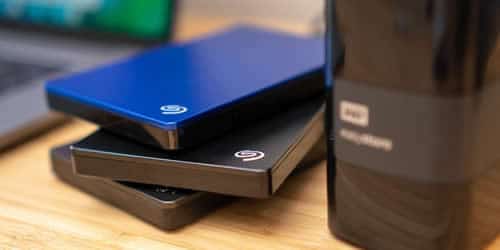
Can Data Be Recovered from a Hard Drive?
In many cases, yes. Deleted or lost files may still remain on a hard drive even when Windows can no longer access them.
Recovery depends on what caused the data loss, whether the original data has been overwritten, and the condition of the drive.
Recovery Is More Likely When
- Files were accidentally deleted, or the Recycle Bin was emptied.
- The drive was formatted but has not been heavily used afterward.
- A partition was accidentally deleted or lost.
- The drive appears as RAW or inaccessible but is still detected by Windows.
- The original file data has not been overwritten.
Recovery May Be More Difficult When
- New files have overwritten the lost data.
- Windows or other software was reinstalled on the affected drive.
- The drive was securely erased or completely overwritten.
- The hard drive has damaged sectors or other hardware problems.
- The drive is no longer detected by Windows.
What If Your Hard Drive Is Physically Damaged?
If your hard drive makes clicking or grinding noises, repeatedly disconnects, or shows signs of physical damage, stop using it. Further scanning may worsen the damage. In these cases, a professional data recovery service may be more appropriate than software.
If Windows still detects your hard drive and it shows no signs of physical failure, you can scan it to check which files may still be recoverable.
Free Download for WindowsHow to Recover Files from a Hard Drive in 3 Steps
If Windows still detects your hard drive and it shows no signs of physical failure, follow these steps to scan for lost files.
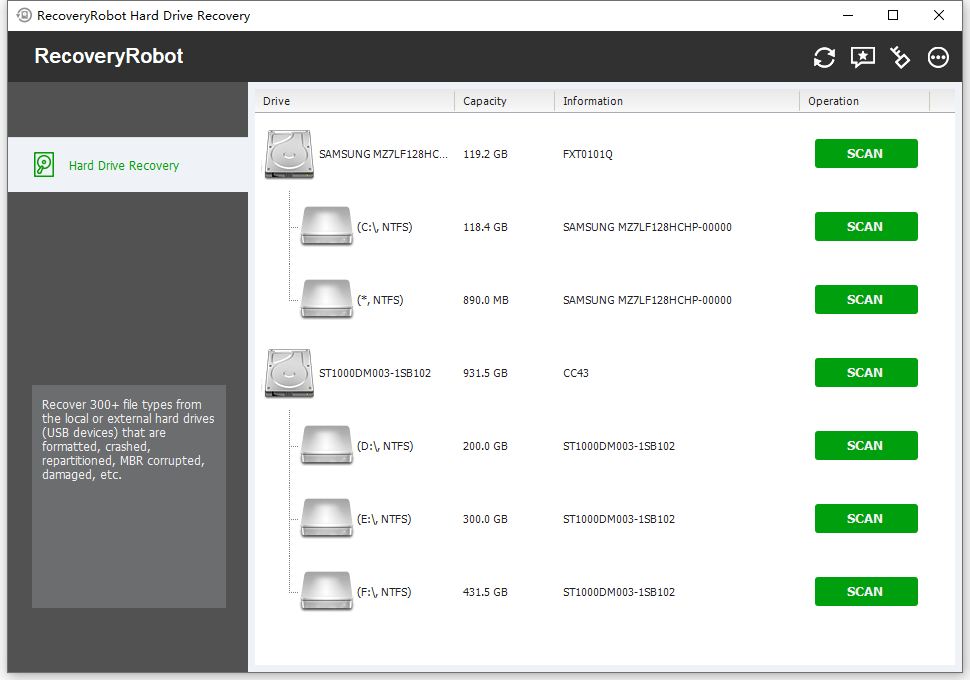
1. Select Your Hard Drive
Download and open RecoveryRobot on your Windows PC.
Choose the internal or external hard drive where your files were lost. If possible, install RecoveryRobot on a different drive from the one you want to recover.
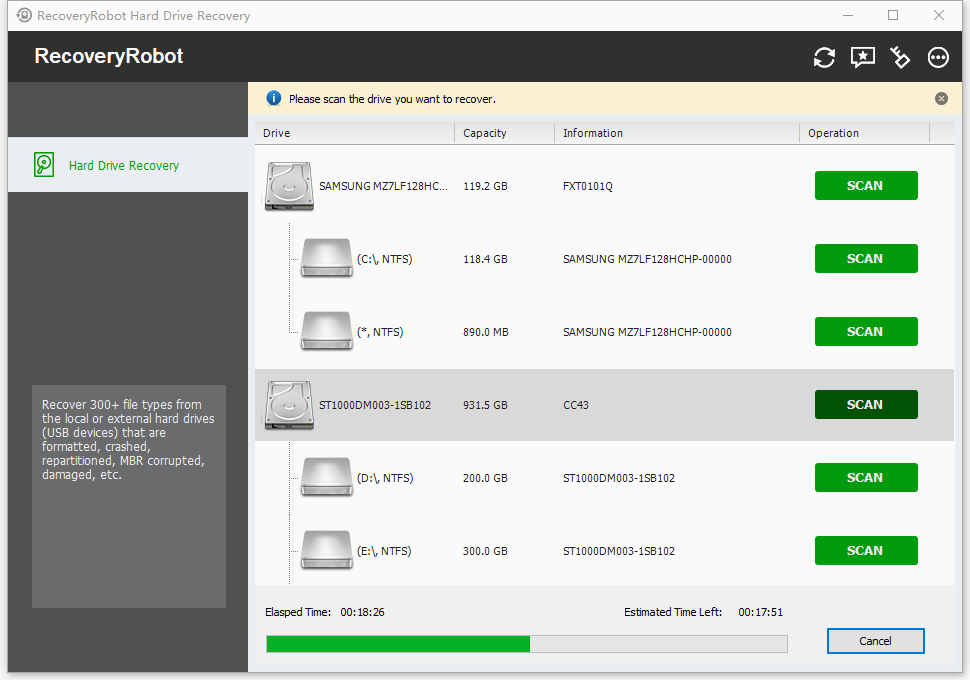
2. Scan for Lost Files
Start the scan and let RecoveryRobot search for deleted, formatted, lost, or inaccessible files.
Once the scan is complete, browse the results to locate the files you need.
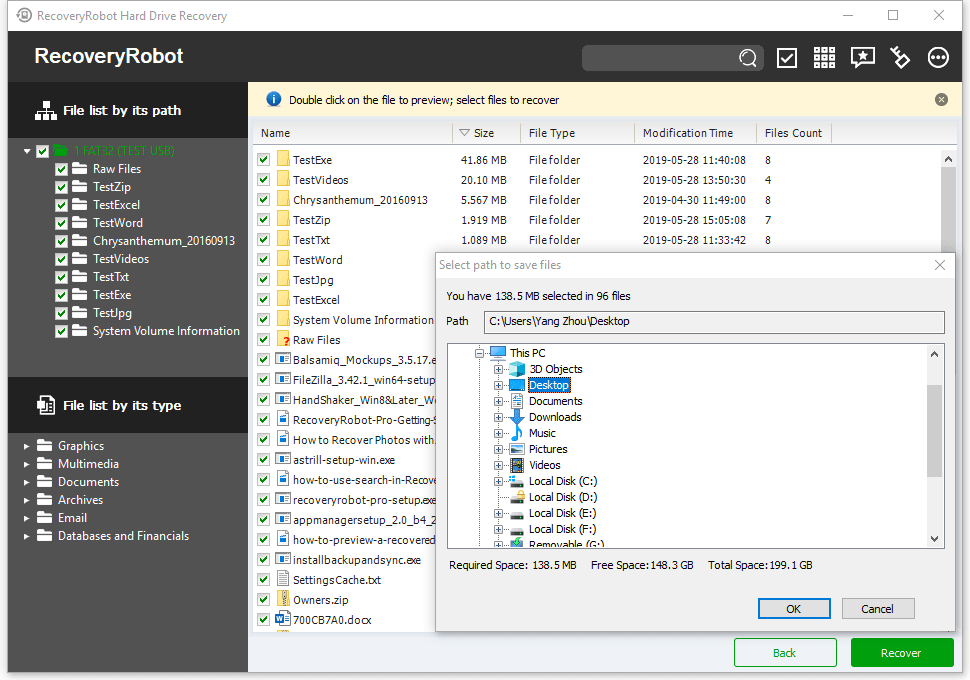
3. Preview and Recover
Preview supported files, select what you want to recover, and save them to a different physical drive or external storage device.
Do not save recovered files back to the affected hard drive, as this may overwrite other recoverable data.
What Happened to Your Hard Drive?
Whether you accidentally deleted files, formatted a drive, or can no longer access your data, start by identifying what happened.
I Accidentally Deleted Files
Deleted important documents, photos, or videos, or emptied the Recycle Bin? Your files may still be recoverable if they have not been overwritten.
I Formatted My Hard Drive
Accidentally formatted an internal or external HDD? Recovery may still be possible, especially if you stopped using the drive immediately afterward.
My Hard Drive Is RAW or Inaccessible
Windows detects your hard drive, but you cannot open it, the file system appears as RAW, or Windows asks you to format it.
Avoid formatting or repairing the drive before recovering your files.
A Partition Disappeared
A partition was accidentally deleted, lost, or replaced by unallocated space in Windows Disk Management.
My External Hard Drive Won't Open
Your external HDD is recognized by Windows, but its files or folders are missing or inaccessible.
My Hard Drive Is Not Detected
If Windows cannot detect the drive, check its cable, port, or enclosure—provided the drive shows no signs of physical failure.
If it makes clicking or grinding noises, or repeatedly disconnects, stop using it and consider professional data recovery.
Internal vs. External Hard Drive Recovery
RecoveryRobot can scan internal and external hard drives that are detected by Windows. The recovery process is similar, but a few precautions depend on how your drive is connected.
Internal Hard Drive Recovery
Lost files from an HDD installed inside your desktop or laptop?
If it is your Windows system drive, continued computer use may overwrite deleted files through updates, temporary files, and other background activity.
What to do:
- Stop saving new files or installing software on the affected drive.
- If practical, connect the HDD to another Windows computer as a secondary drive.
- Scan the drive and save recovered files to a different physical drive.
External Hard Drive Recovery
Accidentally deleted files, formatted your portable HDD, or lost access to an external hard drive?
If Windows still detects the drive and it shows no signs of physical failure, RecoveryRobot can scan it for recoverable files.
What to do:
- Stop copying files to the external HDD.
- Connect it directly to a reliable USB port.
- Scan the drive and recover files to your computer or another storage device.
What If Your External Drive Isn't Recognized?
If the drive shows no signs of physical failure, you can try a different USB cable, port, or compatible enclosure.
If it makes unusual noises, repeatedly disconnects, or shows signs of physical damage, stop using it and consider professional recovery.
Whether your hard drive is internal or external, never save recovered files back to the affected drive.
Free Download for WindowsWhat to Do Immediately After Hard Drive Data Loss
The actions you take after losing files can affect whether they are still recoverable. Before attempting recovery, follow these precautions.
1. Stop Using the Affected Drive
Avoid saving new files, downloading software, installing updates, or making other changes to the hard drive.
New data can overwrite files that might otherwise be recoverable.
2. Check for Signs of Physical Damage
If your hard drive makes clicking or grinding noises, repeatedly disconnects, or shows signs of hardware failure, stop using it and power it down.
Do not attempt repeated scans on a failing drive. Consider professional data recovery instead.
3. Do Not Format or Repair the Drive
If Windows asks you to format or initialize the drive, cancel the operation.
Avoid running CHKDSK or partition-repair utilities before recovering important files. These operations may modify the file system.
4. Prepare a Different Drive for Recovery
Install RecoveryRobot on a different drive whenever possible.
If the affected HDD is your Windows system drive, minimize further computer use. For important data, consider connecting it to another computer as a secondary drive.
Prepare another physical drive with enough free space to store the recovered files.
5. Scan the Hard Drive
If Windows still detects the HDD and it shows no signs of physical failure, scan it for recoverable files.
Review the results and save recovered files to your prepared destination—not back to the affected drive.
Remember: The safest approach is to avoid making changes to the original drive until your important files have been recovered.
What Files Can Be Recovered from a Hard Drive?
RecoveryRobot can scan internal and external hard drives for documents, photos, videos, and other files lost through accidental deletion, formatting, or file-system problems.
Documents
Recover work and personal files, including Word documents, Excel spreadsheets, PowerPoint presentations, PDFs, and text files.
Photos
Find lost or deleted photos, including JPEG, PNG, TIFF, and supported camera RAW formats.
Videos
Recover video files stored on your hard drive, including MP4, MOV, AVI, and other supported formats.
Audio
Recover music, voice recordings, and other audio files, including MP3, WAV, and AAC.
Archives and Other Files
Scan for ZIP archives and other supported file types that may still remain on your drive.
Recovery results depend on the condition of your hard drive and whether the original file data has been overwritten.
When Hard Drive Recovery Software May Not Help
Hard drive recovery software is designed for logical data-loss situations. It may not be effective when the original data has been overwritten or the drive has a hardware-level problem.
The Hard Drive Is Not Detected
If the physical drive does not appear in Windows or Disk Management, RecoveryRobot cannot scan it.
If the drive shows no signs of physical failure, try another cable, USB port, enclosure, or computer first.
The Drive Makes Clicking or Grinding Noises
Unusual mechanical noises can indicate physical failure.
Stop using the drive and power it down. Repeated scans may worsen the damage, so professional data recovery may be more appropriate.
The Lost Data Has Been Overwritten
Once new data has replaced the sectors that contained your lost files, recovery software cannot reconstruct the original file contents.
The Drive Was Securely Erased
Secure-erase and overwrite operations are specifically designed to replace or remove existing data.
Files that have been completely overwritten cannot be recovered by software.
The Drive Has Severe Hardware Problems
Electrical failure, damaged read/write heads, motor problems, damaged platters, or other physical faults require hardware-level recovery rather than ordinary software.
Windows Was Reinstalled or the Drive Was Heavily Reused
Reinstalling Windows, copying large amounts of data, or continuing normal use after data loss can overwrite files that might previously have been recoverable.
If Windows still detects the hard drive, it operates normally, and it shows no signs of physical failure, scanning it is the best way to check what may still be recoverable.
Free Download for WindowsFree Hard Drive Recovery Software vs. Full Version
You can download RecoveryRobot and scan your hard drive before deciding whether you need the full version.
Free Version
The free version lets you:
- Scan internal and external hard drives.
- Search for deleted, formatted, lost, or inaccessible files.
- Preview supported recoverable files.
- Recover up to 50 MB of data for free.
This is useful for checking whether your files are still recoverable before purchasing.
Free Download for WindowsFull Version
The registered version includes:
- No recovery-capacity limit.
- Recovery of larger individual files.
- Recovery of larger amounts of data from the scan results.
- The same scanning and preview process as the free version.
- No need to rescan after upgrading. You can continue with the files already found.
What Users Say About RecoveryRobot
People use RecoveryRobot to recover files lost from internal and external hard drives after accidental deletion, formatting, partition problems, and other data-loss situations.
Easy to Use
Users frequently mention the straightforward recovery process: select the drive, scan for lost files, preview the results, and recover what they need.
Useful Before Purchasing
The free version lets users scan the hard drive and review recoverable files before deciding whether they need the full version.
Works Across Common Hard Drive Scenarios
RecoveryRobot can help users check for files lost from internal HDDs, external hard drives, deleted partitions, formatted drives, and inaccessible file systems.






Submit your review | |
1 2 3 4 5 | |
Submit Cancel | |
this programm is perfect it saved my life and my memos
I have used this Application since last 4-5 years Multiple time. The results are amazing and recovered all data up to 80-85% accuracy. Highly recommended this Application to all users
really its a great programm it solved all the problems that i had when i deleted all my information and photos and memos
I have used this recovery program several times now, and I can truly say that it has saved me many hours of hard work that I would have had to start over and do again.
Excellent app for recovering lost images from a compact flash. It’s the best app.
Hard Drive Recovery FAQ
Possibly. When a file is deleted, its data may remain on the hard drive until the space is overwritten by new data.
Stop using the affected drive and scan it as soon as possible to check what is still recoverable.Yes, in some cases. Recovery is more likely if the drive was formatted recently and has not been heavily used afterward.
Avoid saving new files to the formatted drive before recovery.Yes. RecoveryRobot can scan external hard drives that are detected by Windows and show no signs of physical failure.
If Windows detects the drive but the file system appears as RAW or inaccessible, RecoveryRobot can scan it for recoverable files.
Do not format the drive simply because Windows asks you to.
If the physical drive does not appear in Windows or Disk Management, recovery software cannot scan it.
You can try another cable, USB port, enclosure, or computer if the drive shows no signs of hardware failure. If it clicks, grinds, or repeatedly disconnects, stop using it and consider professional recovery.RecoveryRobot is free to download. You can scan your hard drive, preview supported recoverable files, and recover up to 50 MB of data for free.
The full version removes the recovery-capacity limit.No. Save recovered files to a different physical drive or storage device.
Writing recovered data back to the affected drive may overwrite other files that could still be recoverable.RecoveryRobot can scan supported SSDs, but SSD recovery behaves differently from traditional hard drives because features such as TRIM can affect deleted-data recovery.
For SSD-specific guidance, see our SSD Data Recovery Software page.Scan Your Hard Drive for Recoverable Files
If your hard drive is still detected by Windows and shows no signs of physical failure, you can scan it with RecoveryRobot to see what may still be recoverable.
Windows 11 & 10 · Scan before recovery · Save recovered files to a different drive