
RecoverytRobot® Formatted Data Recovery
Formatted Data Recovery Software – Free Download for Windows
Recover files lost after accidentally formatting a hard drive, external drive, USB flash drive, SD card, memory card, or partition.
RecoveryRobot scans the formatted storage device for recoverable photos, videos, documents, and other files—without requiring professional data recovery skills.
Windows 11 & 10 · Scan before recovery · Preview recoverable files where supported
Important: Stop using the formatted drive or card as soon as possible. Saving new files, reinstalling software, or continuing to use the device may overwrite data that could still be recoverable.
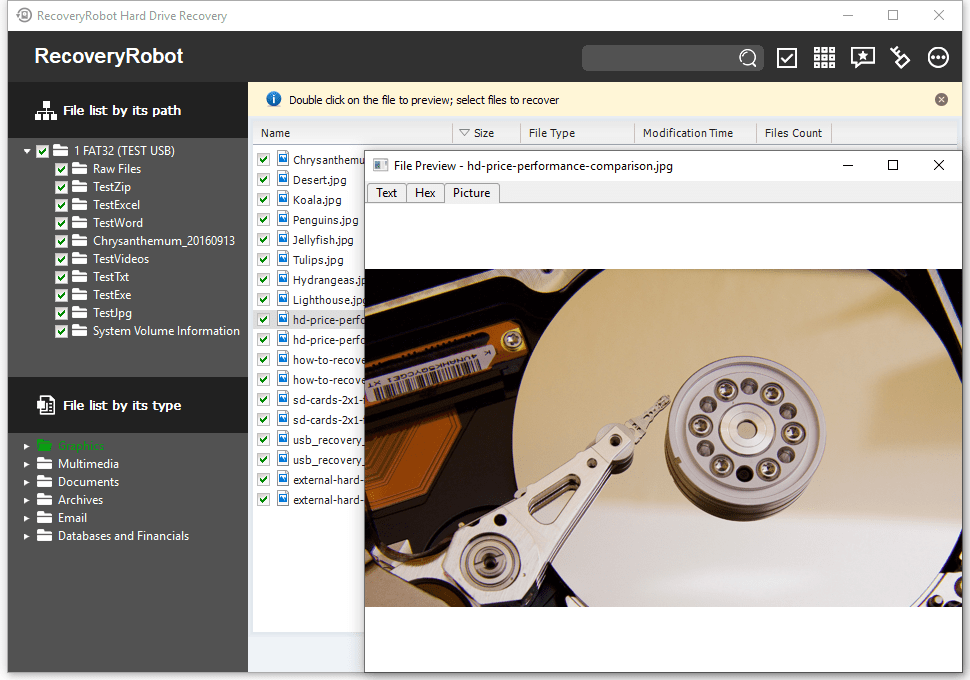
Can Data Be Recovered After Formatting?
In many cases, yes—especially if you stopped using the storage device soon after formatting.
Formatting can remove the file-system information Windows uses to locate your files, while some of the underlying file data may still remain on the device until it is overwritten.
Recovery Is More Likely When
- The drive or card was formatted accidentally
- You have not saved new files to the device
- Windows still detects the storage device normally
- The device does not have physical damage
- The lost data has not been overwritten
Recovery May Be More Difficult When
- The device has been heavily used since formatting
- New files were copied onto the formatted storage
- Windows or other software was reinstalled on the same drive
- The storage device has physical or electrical damage
- An SSD has already processed deleted data through TRIM or other internal cleanup processes
The safest approach is to stop using the formatted device and scan it before making any further changes.
How Formatted Data Recovery Works
RecoveryRobot scans the formatted storage device for file information and data that may still remain after formatting.
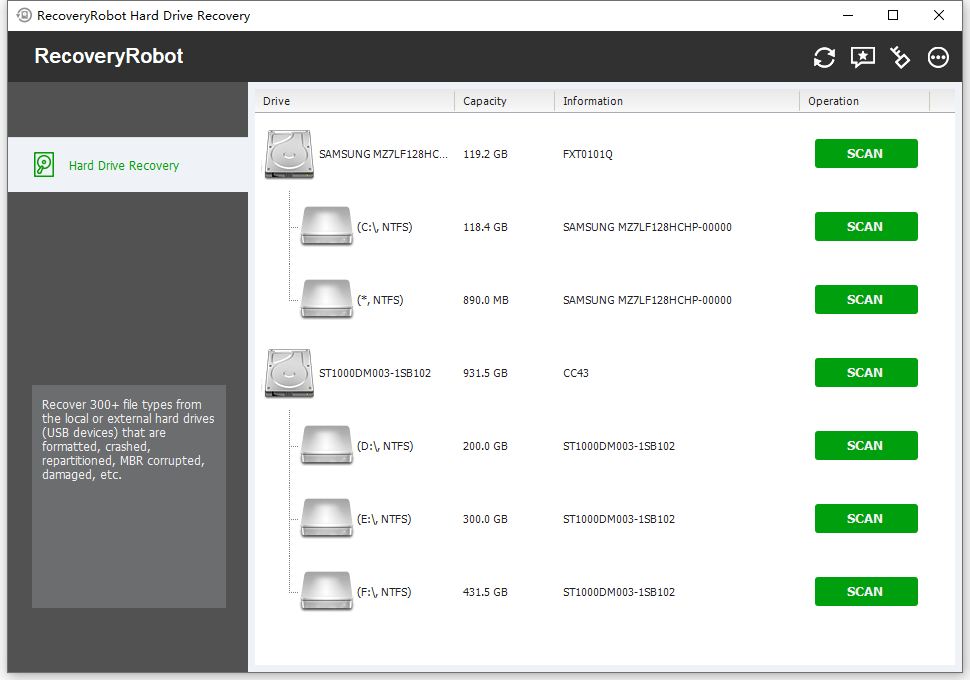
1. Select the Formatted Device
Connect the hard drive, SSD, USB drive, SD card, or other storage device to your Windows computer and select it in RecoveryRobot.
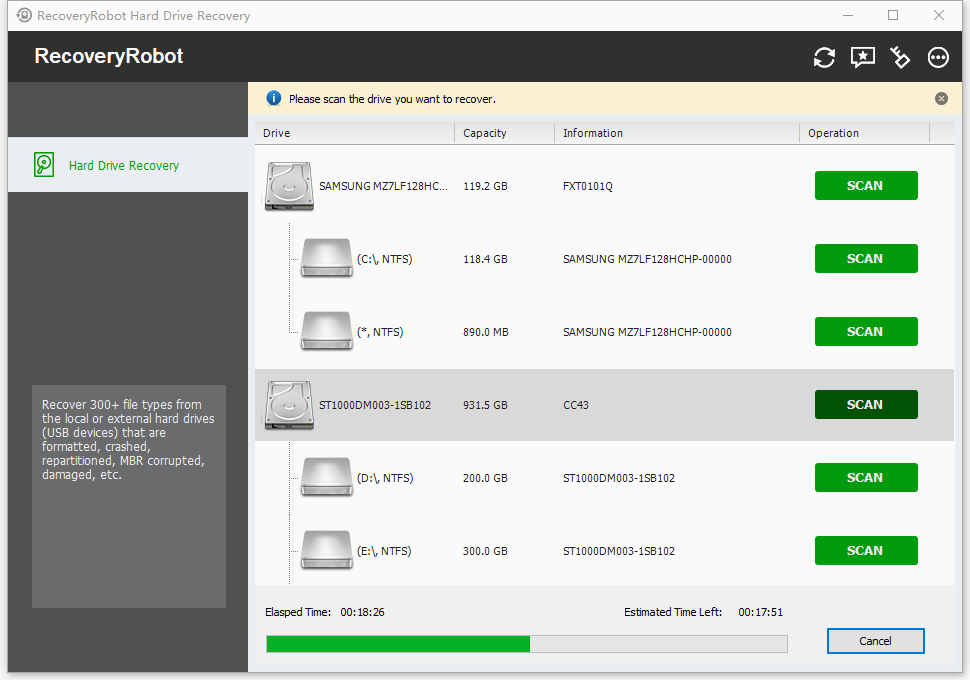
2. Scan for Recoverable Files
RecoveryRobot scans the device for files and file structures that may still be recoverable.
Depending on the size and condition of the device, a deeper scan may find additional files that are no longer visible through Windows.
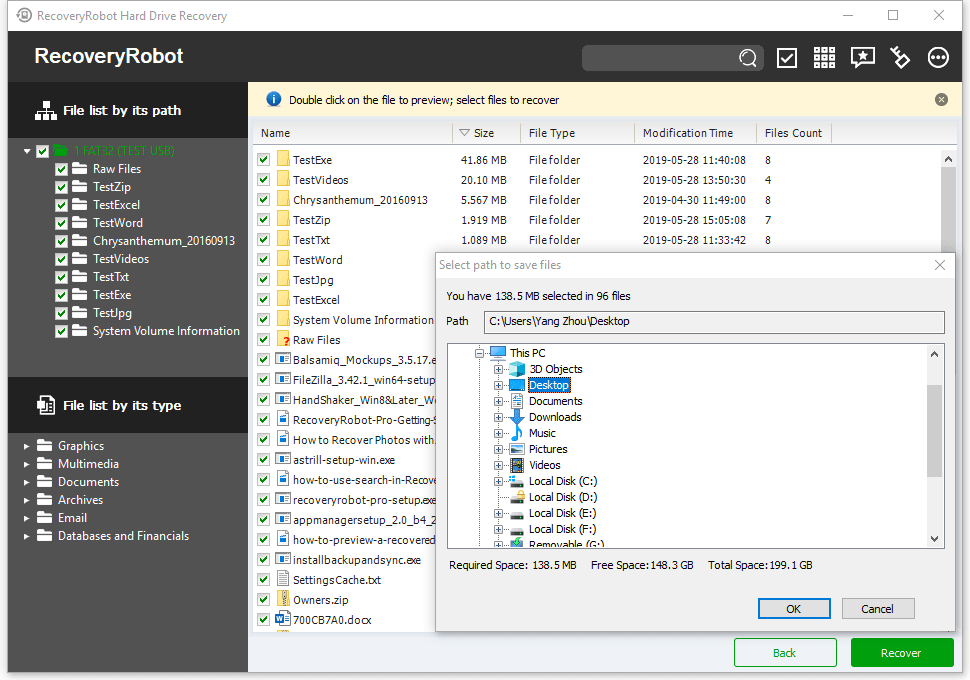
3. Preview and Recover
Review the files found by the scan, preview supported file types, and choose what you want to recover.
Save recovered files to a different drive or storage device to avoid overwriting data that may still be recoverable.
Free Download for WindowsScan first · Preview supported files · Recover only what you need
What Did You Format?
Formatted data recovery works differently depending on the storage device. Choose the device you formatted to see the most relevant recovery option.
Hard Drive
Recover files lost after formatting an internal or external hard drive.
SSD
Scan a formatted SSD for recoverable files. Recovery results can vary because SSDs may process deleted data through TRIM.
USB Flash Drive
Recover files from a USB flash drive or pen drive that was accidentally formatted.
SD Card or Memory Card
Recover photos, videos, documents, and other files from a formatted SD card, microSD card, CompactFlash card, or other memory card.
Partition
Recover files from a partition that was formatted accidentally, including cases where the partition still exists but the original files are no longer visible.
Not Sure What Was Formatted?
If Windows still detects the device but you are unsure which recovery method fits your situation, start with a scan.
Quick Format vs. Full Format: Can Your Data Still Be Recovered?
The type of formatting can make a major difference to your chances of recovering lost files.
Quick Format
A Quick Format rebuilds the file-system structures used to organize the drive, but it does not normally overwrite every sector containing your old files.
That means some file data may still remain until new data is written over it.
Recovery chances are generally better after a Quick Format, especially if you stop using the device immediately.
Full Format or Overwritten Drive
Recovery becomes much more difficult when the formatting process overwrites the areas where your original files were stored.
If the old data has already been overwritten, recovery software cannot reconstruct those overwritten bytes.
What About SSDs?
Formatted SSDs can be more difficult to recover than traditional hard drives because TRIM and the SSD’s internal cleanup processes may remove data from blocks that Windows considers unused.
For this reason, avoid continued use of a formatted SSD and scan it as soon as possible.
Not Sure Which Type of Format You Used?
You do not need to know before starting.
If Windows still detects the device, you can scan it to see whether RecoveryRobot can locate recoverable files.
Scan the Formatted DriveWhat Can Be Recovered After Formatting?
If the original data has not been overwritten, RecoveryRobot may be able to locate many common file types on a formatted drive or memory card.
Photos
Recover lost photos and image files from formatted hard drives, USB drives, SD cards, memory cards, and other storage devices.
Examples include JPEG, PNG, TIFF, BMP, GIF, and supported camera RAW formats.
Videos
Recover videos lost after formatting, including common formats used by cameras, phones, drones, and computers.
Examples include MP4, MOV, AVI, MKV, and other supported video formats.
Documents
Recover documents, spreadsheets, presentations, PDFs, and other work or personal files.
Examples include DOC/DOCX, XLS/XLSX, PPT/PPTX, PDF, TXT, and related formats.
Audio
Recover music, recordings, and other audio files from formatted storage devices.
Examples include MP3, WAV, WMA, AAC, and other supported audio formats.
Other Files
RecoveryRobot can also scan for archives, email data, application files, and other supported file types.
Recovery results depend on the condition of the storage device and whether the original data has been overwritten.
Scan the Formatted Drive
When Formatted Data Recovery Is Less Likely to Work
Formatting does not always mean your files are recoverable. Recovery becomes less likely when the original data has already been overwritten or the storage device has a hardware problem.
The Device Was Used After Formatting
Saving new files, reinstalling software, or continuing to use the formatted drive can overwrite the old data you are trying to recover.
A Full Overwrite Was Performed
If the formatting process or another tool overwrote the sectors containing your original files, recovery software cannot restore those overwritten bytes.
The SSD Has Processed TRIM
On SSDs, TRIM and internal garbage collection can remove data from blocks that the operating system considers unused, reducing the chances of recovery.
The Storage Device Is Physically Damaged
If the drive is not detected, repeatedly disconnects, makes unusual noises, or shows signs of electrical or physical failure, software recovery may not be appropriate.
The Device Has Been Reformatted Multiple Times
Repeated formatting and continued use increase the chance that original file data has been replaced by newer information.
If the device is still detected by Windows and has not been heavily used since formatting, scanning it is usually the safest way to check what may still be recoverable.
Scan the Formatted Drive
Free Download vs. Full Version
You can download RecoveryRobot and scan your formatted device before deciding whether you need the full version.
Free Version
- Scan supported formatted storage devices
- Browse files found during the scan
- Preview supported file types
- Recover up to 50 MB of data
Full Version
- Includes the same scanning and recovery features
- Recover more than the 50 MB free limit
- No recovery-capacity limit after registration
Scan First, Decide Later
If you are unsure whether your formatted files can still be recovered, start with the free download. Scan the device and check the results before purchasing a license.
Important: Install RecoveryRobot and save recovered files to a different drive whenever possible. Do not write new data to the formatted device you are trying to recover.
Trusted by RecoveryRobot Users
People use RecoveryRobot to recover important files, photos, videos, and other data after accidental deletion, formatting, and other data-loss situations.






Submit your review | |
1 2 3 4 5 | |
Submit Cancel | |
this programm is perfect it saved my life and my memos
I have used this Application since last 4-5 years Multiple time. The results are amazing and recovered all data up to 80-85% accuracy. Highly recommended this Application to all users
really its a great programm it solved all the problems that i had when i deleted all my information and photos and memos
In many cases, yes. If the original data has not been overwritten, recovery software may still be able to locate files after formatting.
Often, yes. A Quick Format usually removes file-system information without overwriting every sector containing the original data, so recovery chances can be better if the device has not been used afterward.
Recovery is usually more difficult. If the formatting process overwrote the sectors containing your old data, those overwritten bytes cannot be recovered by software.
Yes, provided the drive is still detected by Windows and the original files have not been overwritten.
Yes. RecoveryRobot can scan supported USB drives, SD cards, memory cards, and other removable storage devices after formatting.
Sometimes, but SSD recovery can be more difficult because TRIM and internal garbage collection may remove data that the operating system considers unused.
Stop using the device. Do not copy new files to it, reinstall software on it, or format it again. New data may overwrite files that could otherwise still be recoverable.
No. If you are trying to recover files, avoid formatting or making other changes to the device before scanning it.
Yes. You can download RecoveryRobot, scan the formatted device, and review the files found before deciding whether you need the full version.
Recover Files from a Formatted Drive
Accidentally formatted a hard drive, SSD, USB drive, SD card, memory card, or partition?
Stop using the device and scan it before more data is written over your lost files.
Scan the formatted device · Preview supported files