
RecoveryRobot® Photo Recovery
Photo Recovery Software – Free Download for Windows
Recover deleted or lost photos from hard drives, USB drives, SD cards, camera memory cards, and other supported storage devices.
RecoveryRobot scans for recoverable pictures, including JPEG, PNG, TIFF, and supported camera RAW files. Preview supported photos before choosing which ones to recover.
Windows 11 & 10 · Scan before recovery
Important: Stop using the drive or memory card where you lost your photos. Saving new files may overwrite photos that could otherwise be recovered.

Can Deleted Photos Be Recovered?
Yes, in many cases. Deleting a photo does not always erase its contents immediately. The original image data may remain on your storage device until it is overwritten.
Whether your photos can be recovered depends on how they were lost, the type of storage device, and what happened afterward.
Recovery Is More Likely When
- You accidentally deleted photos or emptied the Recycle Bin.
- You formatted a memory card or hard drive and haven’t used it since.
- Photos disappeared from a device that is still detected by Windows.
- No new files have been saved over the lost photos.
Recovery May Be More Difficult When
- You continued taking pictures or recording videos on the same memory card.
- New files have overwritten the deleted images.
- The device was securely erased or completely overwritten.
- Deleted photos were stored on an SSD where TRIM has already cleared their data.
- The storage device has physical damage or cannot be read.
What Should You Do First?
Stop using the affected drive or memory card immediately. Do not take more pictures, format the device again, or save new files to it.
If Windows detects the device and it shows no signs of physical failure, you can scan it with RecoveryRobot to see which photos may still be recoverable.
Free Download for WindowsHow to Recover Deleted or Lost Photos in 3 Steps
If your storage device is detected by Windows and shows no signs of physical damage, follow these three steps to find and recover your lost pictures.
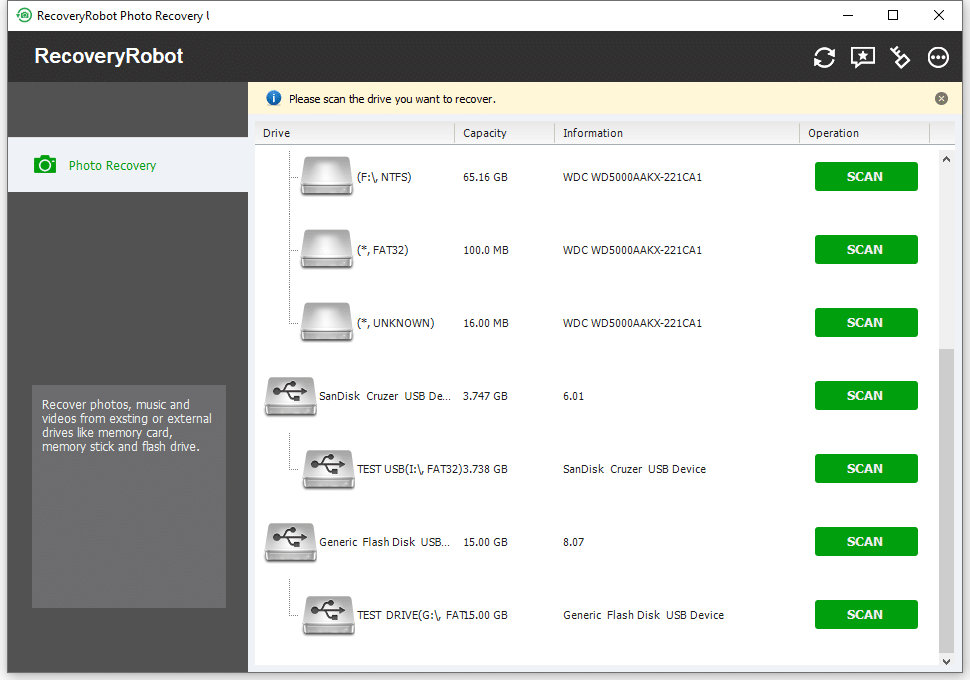
1. Select Your Storage Device
Download and open RecoveryRobot on your Windows PC.
Select the hard drive, USB flash drive, SD card, or camera memory card where your photos were lost. Install RecoveryRobot on a different drive whenever possible.
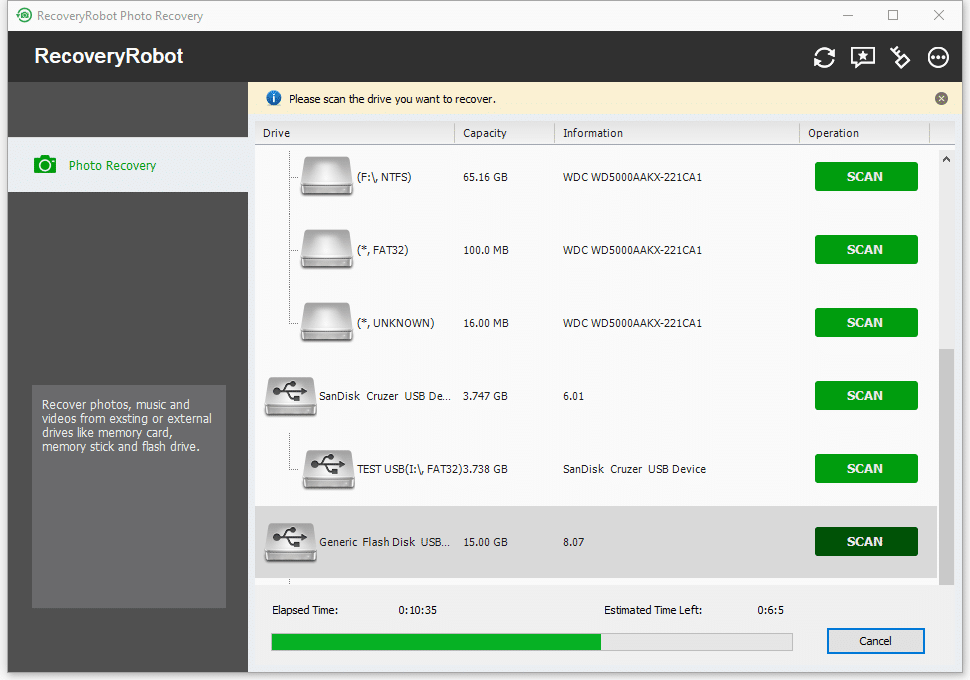
2. Scan for Lost Photos
Start the scan and let RecoveryRobot search for deleted or missing pictures.
Once the scan finishes, browse the results to find your photos. You can use file types and previews, where supported, to help identify the images you need.
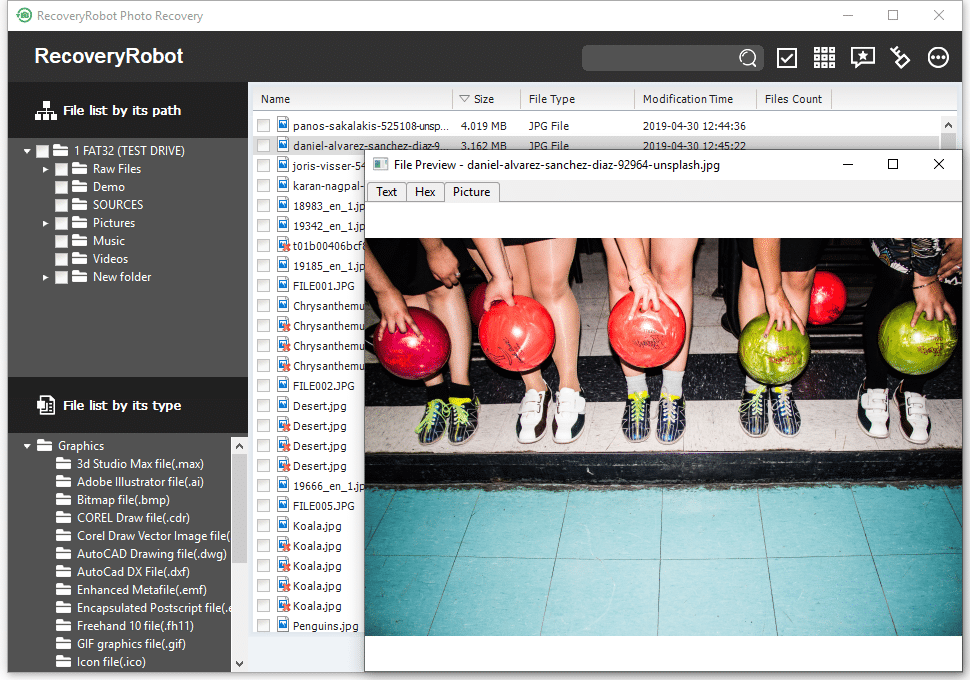
3. Preview and Recover Your Photos
Preview supported pictures, select the photos you want, and recover them to a different physical drive or storage device.
Never save recovered photos back to the original drive or memory card, as this may overwrite other recoverable images.
Scan for Recoverable PhotosWhere Can You Recover Lost Photos From?
RecoveryRobot can search for lost pictures on internal and external storage devices that Windows recognizes
SD Cards and Camera Memory Cards
Recover deleted or missing photos from SD cards, microSD cards, and other supported camera memory cards. If you accidentally formatted a card, stop using it before attempting recovery.
Internal Hard Drives
Lost photos saved on your desktop or laptop's HDD? RecoveryRobot can scan the drive for deleted pictures and other recoverable image files.
External Hard Drives
Recover photos from portable hard drives used for photo libraries, camera backups, or transferring pictures between computers.
USB Flash Drives
Accidentally deleted pictures or formatted a USB flash drive? Scan it for recoverable photos before saving anything new.
Solid-State Drives (SSDs)
RecoveryRobot can scan supported internal and external SSDs. However, SSD features such as TRIM may permanently remove deleted file data, making photo recovery less likely.
Important: The storage device must be detected by Windows for RecoveryRobot to scan it. The software cannot directly recover photos from a phone's internal storage or repair a physically damaged device.
Scan for Recoverable PhotosWhat Photo Formats Can RecoveryRobot Recover?
From everyday pictures to camera RAW files, RecoveryRobot can scan your storage device for a variety of lost image formats.
JPEG and PNG Photos
Recover common photo formats, including JPG, JPEG, and PNG. These are widely used for smartphone pictures, digital camera photos, screenshots, and downloaded images.
TIFF, BMP, and Other Images
Search for lost TIFF, BMP, GIF, and other supported image files, including photos saved for editing or printing.
Camera RAW Photos
Recover supported RAW image files from digital cameras, including supported Canon, Nikon, and Sony formats. RAW recovery can be especially useful when photos disappear from a camera memory card.
Can I Preview Photos Before Recovery?
Yes. After scanning, you can browse the results and preview supported photos to help identify the pictures you want to recover.
Important: Finding a photo during a scan does not guarantee that its contents are intact. Files that have been partially overwritten or corrupted may not open correctly.
Scan for Recoverable PhotosWhat Happened to Your Photos?
Photos can disappear for several reasons, from accidental deletion to formatting or file-system errors. Find the situation that matches yours.
I Accidentally Deleted My Photos
Deleted pictures from your computer, camera card, or external drive? The original image data may still be recoverable if it hasn't been overwritten.
I Formatted My Drive or Memory Card
Accidentally formatted the storage device containing your pictures? Recovery may still be possible, particularly if you haven't saved anything new to it.
Recover Photos from a Formatted Device →
My Photos Suddenly Disappeared
Pictures are missing after a file transfer, an interrupted operation, or a storage error.
First, check other folders, the Recycle Bin, and any available backups. If the original photos are still missing, scan the affected device.
I Lost Photos from My Camera's SD Card
Accidentally deleted pictures or formatted a camera memory card? Stop taking photos or recording videos on that card to avoid overwriting lost images.
See Our SD Card Photo Recovery Guide →
My Drive or Memory Card Is Inaccessible
Windows detects the device, but you cannot open it, the file system appears as RAW, or you're prompted to format it.
Do not format or repair the device before attempting to recover your photos.
What If the Device Is Physically Damaged?
If a hard drive makes unusual noises, repeatedly disconnects, or a memory card is physically damaged, stop using it. A professional recovery service may be more appropriate than software.
Scan for Recoverable PhotosWhat to Do Immediately After Losing Photos
The actions you take after losing photos can affect your chances of recovering them. Follow these precautions before starting recovery.
1. Stop Using the Storage Device
If you lost photos from a camera memory card, stop taking pictures or recording videos. If the photos were stored on a computer or external drive, avoid saving new files to it.
New data may overwrite deleted images.
2. Don't Format or Repair the Device
If Windows or your camera asks you to format the card or drive, cancel the operation.
Avoid running disk-repair tools or attempting another format before recovering your photos.
3. Check for Existing Copies
Before scanning, check the Recycle Bin, other folders, cloud photo libraries, and available backups. Your photos may already exist elsewhere.
4. Prepare a Safe Recovery Location
Connect the affected device to a Windows computer if necessary. Install RecoveryRobot on a different drive whenever possible.
Prepare another storage device with enough free space for your recovered photos.
5. Save Recovered Photos Somewhere Else
After scanning, select the photos you need and recover them to a different physical drive—not the original card or drive.
Important: If the storage device is physically damaged, makes unusual noises, or repeatedly disconnects, stop using it. Professional recovery may be safer than attempting repeated scans.
Scan for Recoverable PhotosWhen Photo Recovery Software May Not Help
RecoveryRobot can search for lost photos, but recovery is not always possible. The outcome depends on the condition of your storage device and whether the original image data is still available.
Your Photos Have Been Overwritten
Taking new pictures, recording videos, or saving files after data loss may overwrite deleted photos. Once the original image data has been completely overwritten, recovery software cannot restore it.
SSD TRIM Has Removed the Data
On SSDs, TRIM may cause deleted photo data to become permanently unavailable, even if you stopped using the drive shortly after deletion.
Your Storage Device Is Physically Damaged
Recovery software cannot repair damaged memory chips, broken connectors, or failing hard-drive components.
If your device makes unusual noises, repeatedly disconnects, or shows signs of physical damage, stop using it and consider professional recovery.
Windows Cannot Detect the Device
RecoveryRobot needs Windows to recognize the storage device before it can scan it. If the device is not detected, the software cannot access its contents.
The Recovered Photo Is Corrupted
Finding a deleted photo does not guarantee that it will open correctly. If part of its data is missing, overwritten, or damaged, the recovered image may be incomplete or unreadable.
RecoveryRobot is designed to recover lost files, not repair corrupted image contents.
If your storage device is detected by Windows and shows no signs of physical failure, scan it to see which photos may still be recoverable.
Scan for Recoverable PhotosFree Photo Recovery Software vs. Full Version
Download RecoveryRobot for free, scan your storage device, and check which photos may still be recoverable before deciding whether to upgrade.
Free Version
With the free version, you can:
- Scan hard drives, SD cards, USB drives, and other supported storage devices.
- Search for deleted, formatted, or missing photos.
- Preview supported recoverable images.
- Recover up to 50 MB of photos for free.
The free version is useful for recovering a few small pictures or checking your recovery results before purchasing.
Free Download for WindowsFull Version
The registered version includes:
- No recovery-capacity limit.
- Recovery of larger photos, including supported camera RAW files.
- Recovery of entire photo collections, subject to which files remain recoverable.
- The same scanning and preview features available in the free version.
What Users Say About RecoveryRobot
See how customers have used RecoveryRobot to recover lost photos and other important files.






Submit your review | |
1 2 3 4 5 | |
Submit Cancel | |
this programm is perfect it saved my life and my memos
I have used this Application since last 4-5 years Multiple time. The results are amazing and recovered all data up to 80-85% accuracy. Highly recommended this Application to all users
really its a great programm it solved all the problems that i had when i deleted all my information and photos and memos
I have used this recovery program several times now, and I can truly say that it has saved me many hours of hard work that I would have had to start over and do again.
Excellent app for recovering lost images from a compact flash. It’s the best app.
Photo Recovery FAQ
Yes, in some cases. Recovery is more likely if you stopped using the card immediately after formatting. Avoid taking new pictures or recording videos before attempting recovery.
RecoveryRobot cannot directly scan a phone's internal storage. If your photos were stored on a removable microSD card, you may be able to scan the card using a compatible card reader.
For photos stored internally, check your phone's Recently Deleted folder and available cloud backups.No. RecoveryRobot searches for lost files; it is not an image-repair tool. A recovered photo may still be unreadable or incomplete if its contents were damaged or partially overwritten.
Always save recovered pictures to a different physical drive or storage device. Saving them back to the original drive or memory card could overwrite other photos that may still be recoverable.
Recover Your Lost Photos with RecoveryRobot
Accidentally deleted pictures or lost photos after formatting a drive or memory card? Scan your storage device with RecoveryRobot to see which images may still be recoverable.
Windows 11 & 10 · Scan before recovery · Save recovered photos to a different drive
arezki
Samriti