
RecoveryRobot® USB Recovery
USB Data Recovery Software – Free Download for Windows
Recover deleted, formatted, lost, or inaccessible files from USB flash drives, pen drives, thumb drives, and memory sticks on Windows.
Windows 11 & 10 · Preview recoverable files before recovery
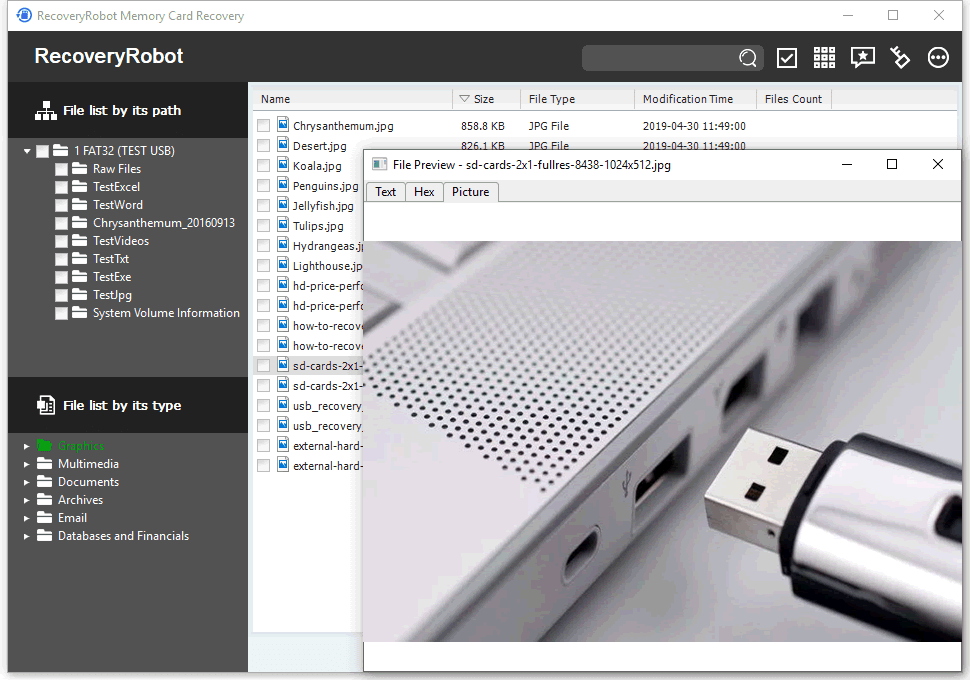
Can RecoveryRobot Recover Data from Your USB Drive?
Good Candidates for Software Recovery
RecoveryRobot may be able to help if:
- You accidentally deleted files from the USB drive
- You accidentally formatted the USB drive
- The USB file system became RAW
- Windows asks you to format the drive before using it
- The USB is detected but cannot be opened normally
- A partition or files have disappeared
- The USB still appears in Disk Management with approximately the correct capacity
Recovery May Be More Difficult
Recovery results can be limited if:
- New files have been saved to the USB after the data was lost
- The drive has been reformatted and reused
- The USB repeatedly disconnects or reports an incorrect capacity
- The storage media has severe corruption or unreadable areas
The less the drive is used after data loss, the better the chance that recoverable data has not been overwritten.
When USB Recovery Software Cannot Help
Software cannot scan a USB drive that the computer cannot access at the hardware level.
Professional hardware recovery may be required if:
- The USB drive is not detected by Windows or Disk Management at all
- The connector or circuit board is physically broken
- The USB has severe electrical, fire, or water damage
- The flash controller or memory chips have physically failed
If the USB contains important data and appears physically damaged, avoid repeatedly connecting or attempting to repair it.
How to Recover Files from a USB Drive with RecoveryRobot
Recovering files from a USB flash drive takes three simple steps. Before you begin, connect the affected USB drive to your computer and avoid saving any new files to it.

1. Select Your USB Drive
Launch RecoveryRobot and select the USB flash drive you want to recover from the list of available drives.
Make sure you select the affected USB drive—not the drive where you plan to save the recovered files.
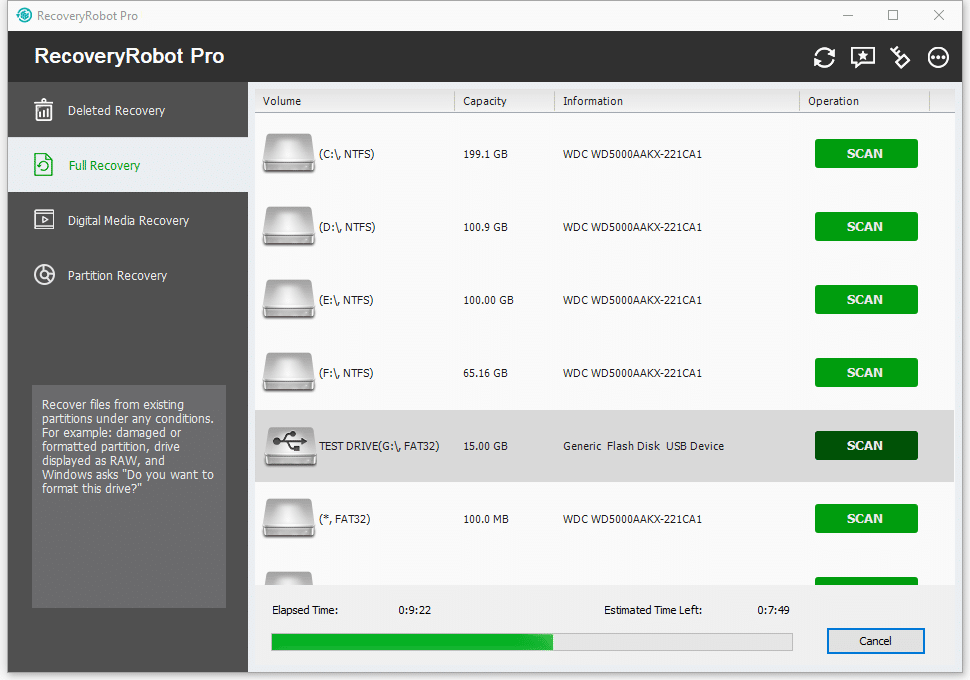
2. Scan for Lost Files
Click Scan to search the USB drive for deleted and lost files.
RecoveryRobot analyzes the drive for recoverable photos, videos, documents, archives, and other files without modifying the original data on the USB drive.
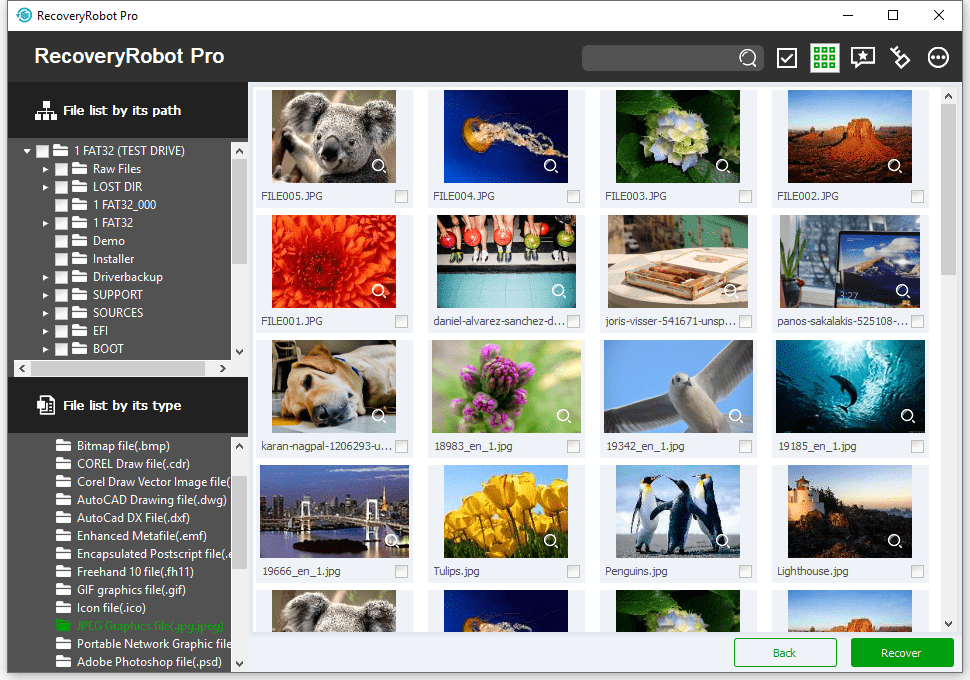
3. Preview and Recover Your Files
When the scan is complete, browse the results and preview recoverable files where supported. Select the files you want and click Recover.
Save recovered files to your computer or another storage device.
Do not save recovered files back to the affected USB drive until recovery is complete, as doing so could overwrite other recoverable data.
Scan Your USB Drive Free
Windows 11 & 10 · Scan before recovery · Preview recoverable files where supported
What Happened to Your USB Drive?
Important: If you have lost files from a USB drive, stop using the drive until recovery is complete. Saving new files to it may overwrite data that could otherwise be recoverable. Choose the situation that best matches your USB drive to learn the safest way to recover your files.
-
I Deleted Files from My USB
Accidentally deleted files or folders from a flash drive? Deleted USB files may still be recoverable if they haven't been overwritten.
-
I Accidentally Formatted My USB
Formatted the wrong flash drive or lost files after a quick format? Scan the drive before saving anything new to it.
-
My USB Is Corrupted or Inaccessible
Your USB is detected, but Windows cannot open it, files appear damaged, or the drive no longer works normally.
-
My USB Drive Became RAW
Disk Management shows the USB file system as RAW instead of FAT32, exFAT, or NTFS.
-
Windows Says the USB Needs to Be Formatted
Seeing “You need to format the disk before you can use it”? If you need the files, don't format the drive yet.
-
My Files or Partition Disappeared
Files, folders, or the USB partition are missing even though the drive is still detected by Windows.
Scan Your USB Drive Free
Windows 11 & 10 · Scan before recovery · Preview recoverable files where supported
What Can RecoveryRobot Recover from a USB Drive?
RecoveryRobot can scan USB flash drives that are detected by Windows and search them for a wide range of lost files.
Recover the Files That Matter
Recover commonly used file types, including:
Photos & Images
Recover lost photos, graphics, and other image files.
Videos & Audio
Find lost video, music, recordings, and other media files.
Documents
Recover documents, PDFs, spreadsheets, presentations, and other work or personal files.
Archives & Other Files
Search for ZIP, RAR, and other supported file types stored on your USB drive.
Supports Common USB File Systems
RecoveryRobot supports the file systems commonly used on USB flash drives:
FAT12 · FAT16 · FAT32 · exFAT · NTFS · NTFS5
Not sure which file system your USB uses? You don't need to know before scanning—the software detects the drive and analyzes it for recoverable data.
Works with USB Flash Drives, Pen Drives, Thumb Drives, and Memory Sticks
RecoveryRobot works with USB flash drives from SanDisk, Kingston, Samsung, Lexar, PNY, Transcend, Toshiba, and other brands...
The brand of the USB drive is usually less important than its condition: if Windows can still detect the drive and access it at the storage-device level, RecoveryRobot can attempt to scan it for recoverable files.
When Should You Use USB Recovery Software?
USB recovery software is most useful when Windows can still detect your flash drive, pen drive, or memory stick, but your files are deleted, formatted, or inaccessible.
Files Were Deleted, or the USB Was Formatted
Stop using the drive immediately. New files may overwrite data that could still be recoverable.
Best next step: Scan the USB before saving anything new to it.
Windows Detects the USB but Cannot Open It
If Windows asks you to format or repair the drive, recover important files first whenever possible.
Best next step: Recover first, repair or reformat later.
The USB Is Not Detected at All
If the drive does not appear in Disk Management or has physical damage, ordinary USB recovery software may not be able to scan it. Professional hardware recovery may be required.
RecoveryRobot is a USB data recovery tool for Windows that can scan detectable USB flash drives and pen drives for recoverable files.
Common Causes of USB Data Loss
USB files can become lost or inaccessible for many reasons, including:
- Accidental deletion
- Formatting the wrong USB drive
- RAW or corrupted file systems
- Lost or damaged partitions
- Removing the USB while files are being written
- Interrupted file transfers or power loss
- Virus or malware infection
- File-system or device errors
Whatever the cause, avoid writing new data to the affected USB until important files have been recovered.
Free Download vs Full Version: What's the Difference?
You can download RecoveryRobot for free, scan your USB drive, and check whether your lost files can be found before purchasing.
Free Version
- Scan your USB drive for lost files
- Browse the files found during the scan
- Preview supported files
- Recover up to 50 MB of data
Full Version
- Includes the same scanning and recovery features
- Removes the 50 MB recovery limit
- Recover as much recoverable data as you need
Not sure whether your files can be recovered? Start with the free version and scan the USB first.
Start a Free Scan
Windows 11 & 10 · Scan before recovery · Preview recoverable files where supported
What RecoveryRobot Users Say
RecoveryRobot has helped users recover important photos, documents, and other files after unexpected data loss.






Submit your review | |
1 2 3 4 5 | |
Submit Cancel | |
this programm is perfect it saved my life and my memos
I have used this Application since last 4-5 years Multiple time. The results are amazing and recovered all data up to 80-85% accuracy. Highly recommended this Application to all users
really its a great programm it solved all the problems that i had when i deleted all my information and photos and memos
- Photos and images
- Videos
- Audio files
- Documents and PDFs
- Spreadsheets and presentations
- Archives
- Other supported file formats
- Copy new files to it
- Format it
- Save recovered files back to it
- Run repair tools that modify the file system before recovering important data
Ready to Recover Your USB Files?
If your USB flash drive is still detected by Windows, RecoveryRobot can scan it for deleted, formatted, lost, or inaccessible files.
Windows 11 & 10 · Scan before recovery · Preview recoverable files where supported