
RecoveryRobot® Recycle Bin Recovery
Recycle Bin Recovery Software – Free Download for Windows
Recover files after the Windows Recycle Bin has been emptied, or after files were permanently deleted and can no longer be restored normally.
RecoveryRobot scans the drive where the deleted files were originally stored and lets you review recoverable files before deciding what to restore.
Windows 11 & 10 · Scan before recovery · Preview recoverable files where supported
If the files are still in the Recycle Bin: open Recycle Bin, select the files, and choose Restore. You do not need recovery software.
If the Recycle Bin has already been emptied: stop using the affected drive and scan it before new data overwrites the deleted files.
Is the File Still in the Recycle Bin?
Before using recovery software, check whether the file is still available in Windows Recycle Bin.
The File Is Still in Recycle Bin
If you can still see the file:
- 1. Open Recycle Bin
- 2. Find the file or folder
- 3. Right-click it
- 4. Choose Restore
Windows returns the file to its original location.
You do not need recovery software in this situation.
The Recycle Bin Has Been Emptied
If you already emptied the Recycle Bin, the file can no longer be restored through the normal Windows interface.
The file data may still remain on the original drive until it is overwritten.
The File Was Deleted with Shift+Delete
Files deleted with Shift+Delete normally bypass the Recycle Bin completely.
If you need the file back, stop using the drive where it was stored and scan that drive for recoverable data.
The File Never Appeared in Recycle Bin
Some deleted files may bypass Recycle Bin because of how or where they were deleted—for example, files on certain removable or network storage locations.
If the file is no longer accessible, scan the storage device where it was originally saved.
Scan for Deleted FilesCan Files Be Recovered After Emptying the Recycle Bin?
Sometimes, yes.
Emptying the Recycle Bin removes the normal Windows reference to those files, but the underlying file data may still remain on the original drive until it is overwritten or cleared.
Recovery Is More Likely When
- The Recycle Bin was emptied recently
- You stopped using the affected drive afterward
- No large files, applications, or Windows updates were written to the drive
- The deleted files were stored on a traditional hard drive
- The original file data has not been overwritten
Recovery May Be More Difficult When
- The drive has been heavily used since deletion
- New files have overwritten the deleted data
- Windows or applications were installed or updated on the same drive
- The deleted files were stored on an SSD and TRIM has already cleared the affected blocks
- The storage device has a physical or hardware problem
Empty Recycle Bin Does Not Mean Immediate Erasure
On many storage devices, deleting a file tells the file system that its storage space can be reused.
Until that space is overwritten, some file data may still be recoverable.
SSDs can behave differently because TRIM may allow deleted data to be cleared much sooner.
If the files are important, stop using the original drive and scan it before making further changes.
Scan for Deleted FilesHow to Recover Files After Emptying the Recycle Bin
If the files are no longer in Recycle Bin, scan the drive where they were originally stored.
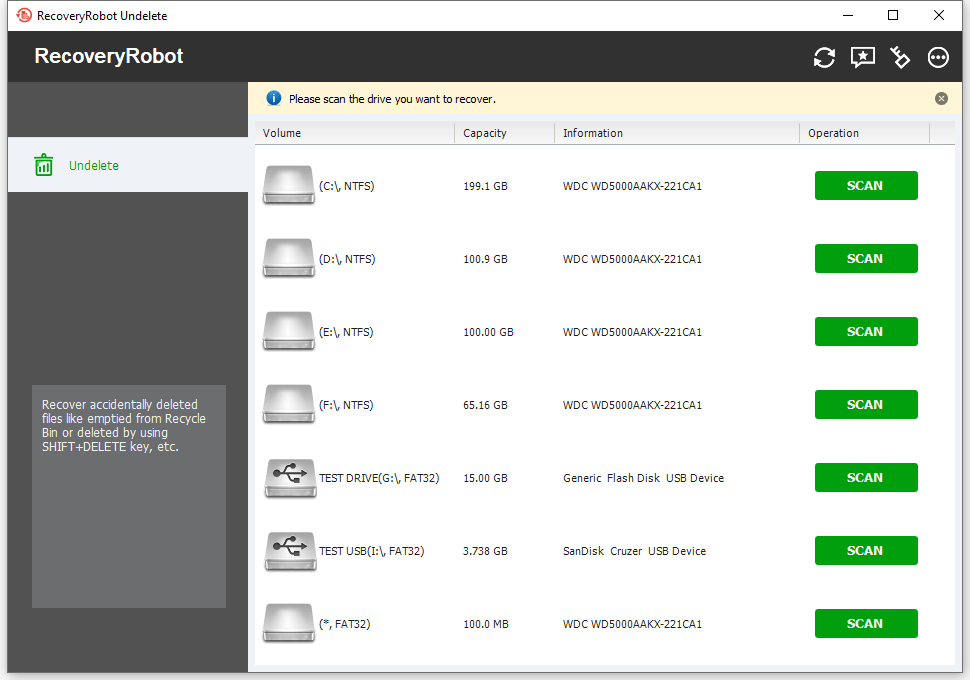
1. Select the Original Drive
Open RecoveryRobot and choose the drive that contained the deleted files before they were moved to Recycle Bin.
For example, if the file was originally stored on drive D:, scan drive D:.
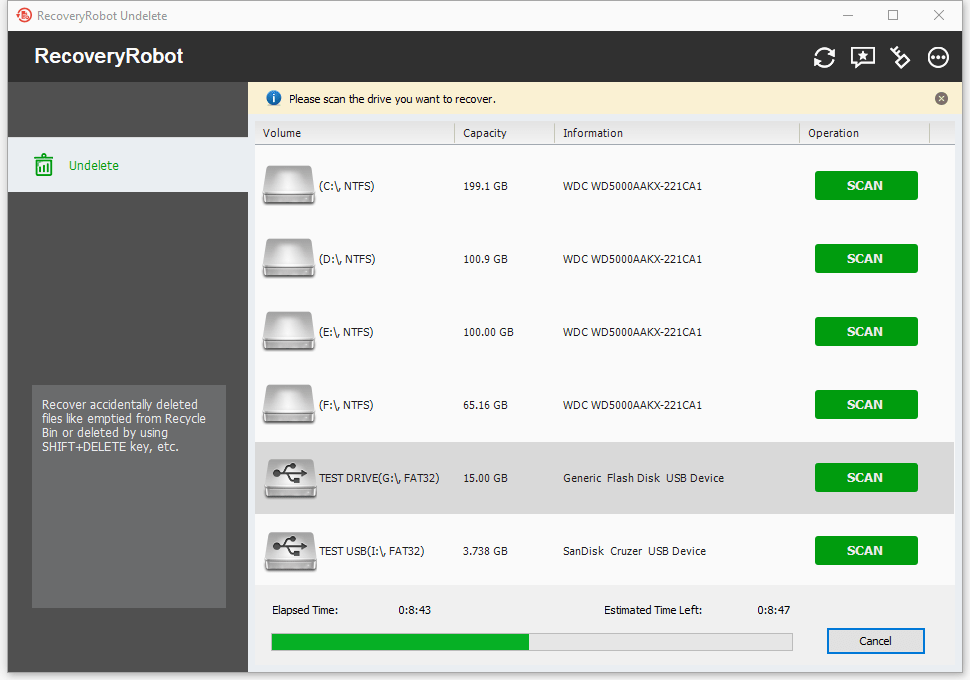
2. Scan for Deleted Files
Start the scan and let RecoveryRobot search the drive for deleted files that may still remain recoverable.
Recovery results depend on whether the deleted data has already been overwritten or, on SSDs, cleared through TRIM.
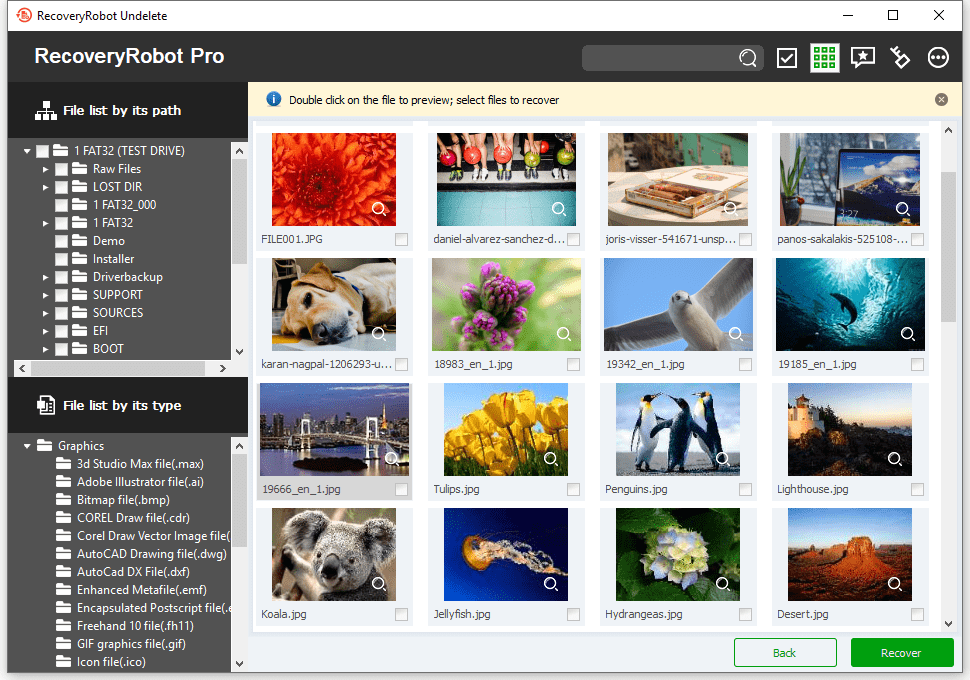
3. Preview and Recover
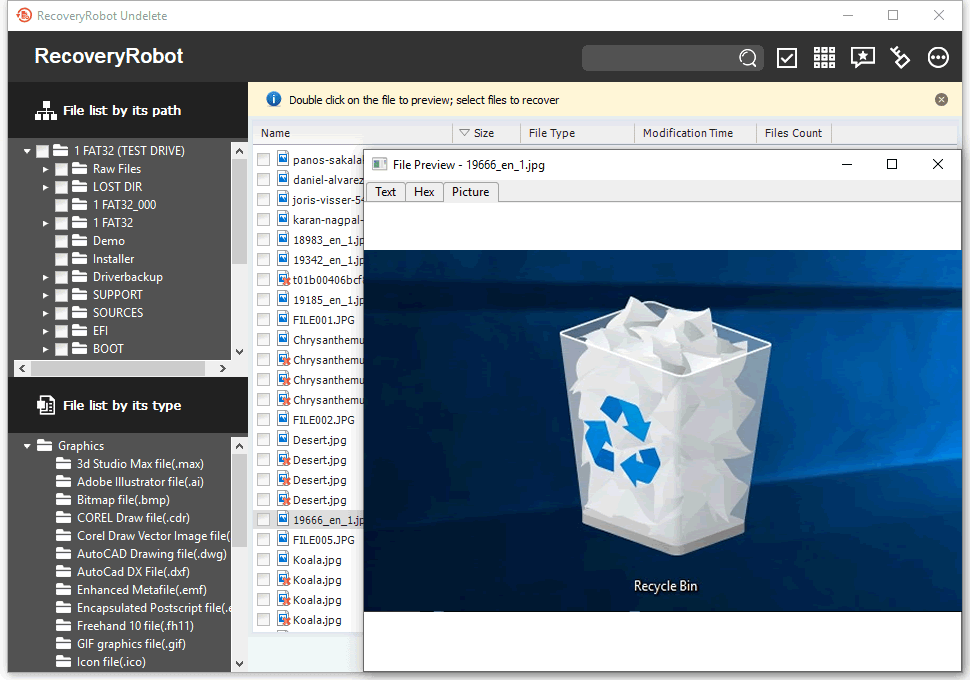
Review the files found during the scan, preview supported file types, and select what you want to recover.
Save recovered files to a different physical drive or external storage device.
Do not save them back to the drive you are recovering from.
Free Download for WindowsWhat Happened to Your Files?
Choose the situation that best matches how the files disappeared.
I Emptied the Recycle Bin
Files were in Recycle Bin, but the bin has already been emptied.
They may still be recoverable if the original data has not been overwritten.
Recover Files After Emptying Recycle Bin →
I Used Shift+Delete
Files deleted with Shift+Delete normally bypass Recycle Bin and are treated as permanently deleted by Windows.
Recover Shift+Deleted Files →
The File Was Too Large for Recycle Bin
Windows may permanently delete very large files instead of moving them to Recycle Bin.
If the file is no longer available, scan the drive where it was originally stored.
Files Were Deleted from a USB Drive or Memory Card
Files deleted from some removable storage devices may bypass the Windows Recycle Bin entirely.
Scan the USB drive, SD card, or memory card where the files were stored.
I Deleted Files from an External Drive
Depending on the device and how the files were deleted, they may not appear in the main Windows Recycle Bin.
If they are no longer accessible, scan the external drive directly.
Scan the External Drive →
I’m Not Sure How They Were Deleted
If the files are no longer in Recycle Bin and you know which drive originally contained them, start by scanning that drive.
Scan for Deleted FilesWhat to Do Immediately After Permanently Deleting Files
What you do next can directly affect whether the deleted files are still recoverable.
1. Stop Using the Affected Drive
Avoid saving files, installing software, downloading updates, or making other changes to the drive where the deleted files were stored.
New data can overwrite the storage space previously used by those files.
2. Do Not Install Recovery Software on the Same Drive
Install RecoveryRobot on a different drive whenever possible.
Installing software to the affected drive could overwrite data you are trying to recover.
3. Minimize Use of the Computer
If the deleted files were stored on your Windows system drive, background activity can continue writing temporary files, logs, updates, and other data.
If the files are important, limit further use before scanning.
4. Scan the Original Storage Location
Recovery software needs to scan the drive where the files were originally stored—not the Recycle Bin itself.
For example, if a deleted file was originally on drive D:, scan drive D:.
5. Recover Files to a Different Drive
Save recovered files to another physical drive, external drive, or storage device.
Do not restore them to the same drive during the recovery process.
If the files are no longer in the Recycle Bin, the safest next step is to scan their original storage location before more data is written.
Scan for Deleted FilesHDD vs. SSD Recycle Bin Recovery
The type of drive where the deleted files were originally stored can make a big difference to recovery.
Files Deleted from a Hard Drive
On a traditional HDD, deleting a file usually removes its file-system reference without immediately erasing the file contents.
That means the data may remain recoverable until new information overwrites the same disk space.
Recovery is generally more favorable when:
- The Recycle Bin was emptied recently
- The hard drive has not been heavily used afterward
- No new files have overwritten the deleted data
Files Deleted from an SSD
SSDs can be more difficult because Windows may send a TRIM command after files are deleted.
TRIM tells the SSD that those blocks are no longer needed, and the drive may clear them internally.
Once the deleted blocks have been cleared, recovery software cannot reconstruct the original file contents.
SSD recovery is more uncertain when:
- TRIM is active
- The SSD has continued running after deletion
- Windows or applications have written new data to the drive
Which Drive Should You Scan?
Scan the original drive where the file was stored before deletion.
If you are unsure whether the drive is an HDD or SSD, you can check its type in Windows before starting recovery.
Scan for Deleted FilesWhat Files Can Be Recovered After Emptying the Recycle Bin?
If the original data has not been overwritten or cleared, RecoveryRobot may be able to recover many common file types from the drive where they were originally stored.
Documents
Recover work and personal files such as documents, spreadsheets, presentations, PDFs, and text files.
Examples include DOC/DOCX, XLS/XLSX, PPT/PPTX, PDF, and TXT.
Photos
Recover deleted photos and image files.
Examples include JPEG, PNG, TIFF, BMP, GIF, and supported camera RAW formats.
Videos
Recover deleted video files that may still remain on the original drive.
Examples include MP4, MOV, AVI, MKV, and other supported formats.
Audio
Recover music, recordings, and other supported audio files.
Examples include MP3, WAV, WMA, and AAC.
Archives and Other Files
RecoveryRobot can also scan for ZIP archives and other supported file types that may still be recoverable.
Recovery depends on whether the deleted data is still present on the original drive—not on how long the file remained in Recycle Bin before it was emptied.
Scan for Deleted FilesWhen Recycle Bin Recovery May Not Work
Recovery is not always possible after files have been permanently deleted. The main reasons are overwritten data, SSD TRIM, or problems with the original storage device.
The Deleted Data Has Been Overwritten
If new files, applications, updates, or other data have reused the same storage space, the original file contents cannot be recovered by software.
The Files Were Deleted from an SSD with TRIM
On SSDs, TRIM may cause deleted blocks to be cleared after the files are removed.
Once those blocks have been erased internally, recovery software cannot reconstruct the original files.
The Computer Was Heavily Used After Deletion
Continued browsing, downloading, installing software, or normal Windows activity can create new data and overwrite deleted files.
Windows Was Reinstalled or Reset
Reinstalling or resetting Windows can write large amounts of new data to the system drive, reducing the chance of recovering previously deleted files.
The Original Drive Is Not Detected
RecoveryRobot needs Windows to detect the physical drive where the files were originally stored.
If the drive is missing from Windows or Disk Management, the issue may involve hardware, the controller, cables, or the storage device itself.
The Storage Device Has Physical Damage
Electrical failure, damaged connectors, unusual noises from an HDD, or other hardware problems may require professional recovery rather than software.
If the original drive is still detected and has not been heavily used since the files were deleted, scanning it is the best way to check what may still be recoverable.
Scan for Deleted FilesFree Recycle Bin Recovery vs. Full Version
You can download RecoveryRobot and scan the original drive before deciding whether you need the full versio
Free Version
- Scan the drive where the deleted files were originally stored
- Browse files found during the scan
- Preview supported file types
- Recover up to 50 MB of data
Full Version
- Includes the same scanning and preview features
- Recover more than the 50 MB free limit
- No recovery-capacity limit after registration
Scan First, Decide Later
If you are unsure whether files emptied from Recycle Bin are still recoverable, start with the free version.
Scan the original drive, review what RecoveryRobot finds, and check whether the files you need are still available before purchasing a license.
Important: Install RecoveryRobot on a different drive whenever possible, and save recovered files to another physical drive or external storage device.
Trusted by Both Pro and Ordinary Users
RecoveryRobot has helped users recover important files after accidental deletion and other data-loss situations.






Submit your review | |
1 2 3 4 5 | |
Submit Cancel | |
this programm is perfect it saved my life and my memos
I have used this Application since last 4-5 years Multiple time. The results are amazing and recovered all data up to 80-85% accuracy. Highly recommended this Application to all users
really its a great programm it solved all the problems that i had when i deleted all my information and photos and memos
Recycle Bin Recovery FAQ
Sometimes. If the deleted file data has not been overwritten or cleared, recovery software may still be able to find it on the original drive.
Windows removes the normal file-system reference and makes the storage space available for reuse. The underlying data may remain temporarily until it is overwritten or, on some SSDs, cleared through TRIM.
Yes, potentially. Shift+Delete bypasses the Recycle Bin, but the file data may still remain on the original drive until it is overwritten.
Scan the drive where the file was stored before deletion.
For example, if the deleted file was originally on drive D:, scan drive D:.Sometimes, but SSD recovery is less predictable because TRIM may clear deleted data quickly. Stop using the SSD as soon as possible.
Often, provided the deleted data has not been overwritten. Traditional hard drives may leave deleted file data in place until new information replaces it.
Possibly. Files deleted from removable storage may bypass the Windows Recycle Bin entirely. Scan the USB drive, SD card, or memory card where the files were originally stored.
RecoveryRobot lets you scan the original drive, preview supported files, and recover up to 50 MB of data with the free version.
No, if you can avoid it. Installing software on the affected drive may overwrite deleted data. Use another drive whenever possible.
Save them to a different physical drive or external storage device—not back to the drive you are recovering from.
Recover Files After Emptying the Recycle Bin
Emptied the Recycle Bin or permanently deleted important files?
Stop using the original drive and scan it before new data overwrites files that may still be recoverable.
Windows 11 & 10 · Install and recover to a different drive whenever possible