
Accidentally deleted photos from an SD card or microSD card? They may still be recoverable if the card has not been used to store new data.
The Short Answer
Stop using the SD card immediately. Do not take more photos, record videos, format the card, or save anything new to it. Then:
- 1. Remove the SD card from the camera, phone, or other device.
- 2. Connect it to your Windows PC using a card reader.
- 3. Scan the card for deleted photos using RecoveryRobot
- 4. Preview the photos found.
- 5. Recover the photos to your computer—not back to the SD card.
Windows 11 & 10 · Preview supported photos before recovery
Important: Every new file written to the SD card can overwrite deleted photo data and reduce the chance of recovery.
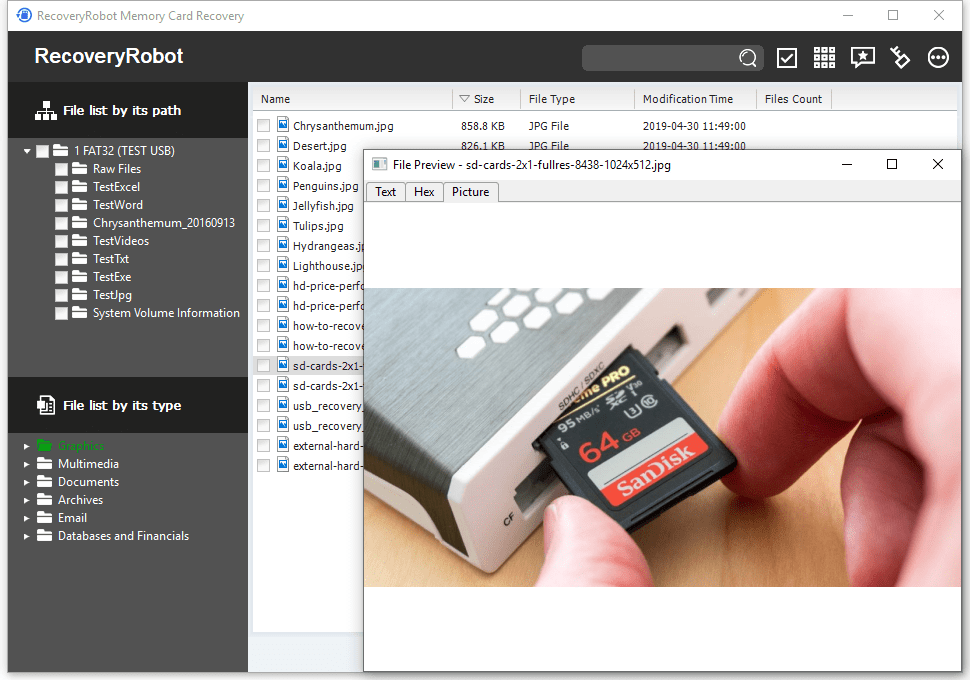
Can Deleted Photos from an SD Card Be Recovered?
In many cases, yes.
When a photo is deleted, the SD card may mark that storage space as available without immediately erasing all of the photo data. Recovery may still be possible until new files overwrite that space.
Recovery Is More Likely When
- The photos were deleted recently
- You stopped using the SD card immediately
- No new photos or videos have been saved to the card
- The card is still detected normally by your computer
- The card has not been reformatted and reused
Recovery Becomes More Difficult When
- You continued taking photos or recording videos
- New files were copied onto the SD card
- The card was formatted and then reused
- The card is physically damaged or cannot be detected
- The deleted photo data has already been overwritten
The Most Important Rule
Do not write anything new to the SD card.
Remove it from the camera, phone, drone, or other device and connect it to a computer for recovery instead.
If your computer can still detect the card, scan it before trying to format, repair, or reuse it.
Scan the SD Card for Deleted PhotosHow to Recover Deleted Photos from an SD Card
Once the card is connected to your Windows PC, the recovery process is straightforward.
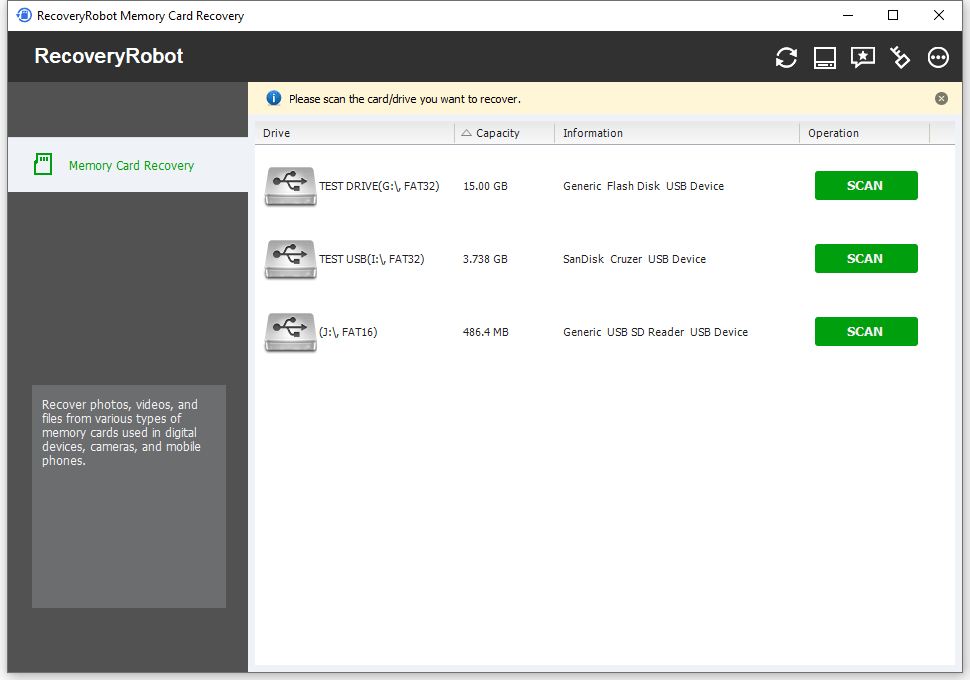
1. Select the SD Card
Open RecoveryRobot and choose the SD or microSD card that contained the deleted photos.
Make sure you select the correct removable storage device before starting the scan.
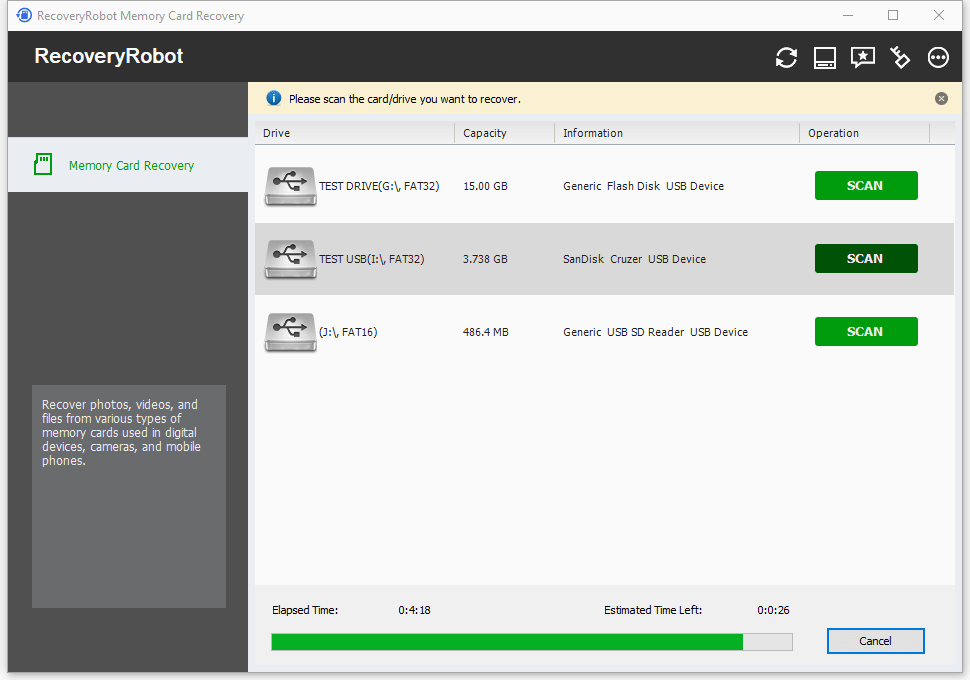
2. Scan for Deleted Photos
Start the scan and let RecoveryRobot search the card for deleted and lost image files.
A deeper scan may find additional photos that are no longer visible through Windows or the original device.
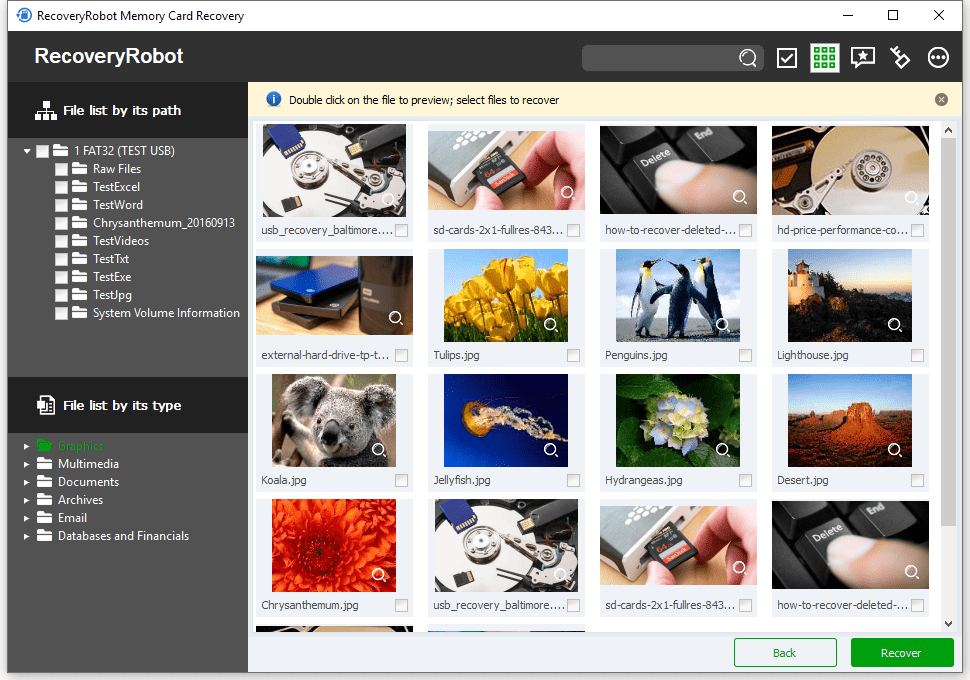
3. Preview and Recover
Review the photos found during the scan and preview supported image files.
Select the photos you want to recover and save them to your computer or another storage device.
Do not save recovered photos back to the same SD card.
Free Download for WindowsWhat to Do Immediately After Deleting Photos from an SD Card
The first few actions you take can make a major difference to your chances of recovering deleted photos
1. Stop Using the SD Card
Do not take more photos, record videos, copy files, or save anything new to the card.
New data can overwrite the space where deleted photos are still stored.
2. Remove the Card from the Device
Take the SD or microSD card out of the camera, phone, drone, dashcam, or other device.
This helps prevent apps or the device itself from writing new data to the card.
3. Do Not Format the Card
If Windows, your camera, or another device asks you to format the card, cancel the operation if you still need the deleted photos.
Formatting can make recovery more difficult.
4. Connect the Card to a Computer
Use a built-in card reader or a reliable USB card reader to connect the SD card to your Windows PC.
Make sure Windows can detect the card before starting recovery.
5. Recover Photos to a Different Location
When you recover files, save them to your computer or another storage device—not back to the same SD card.
This helps avoid overwriting other photos that may still be recoverable.
If the card is still detected by Windows, the safest next step is to scan it before making any repairs or changes.
Scan the SD Card for Deleted PhotosDeleted, Formatted, or Missing Photos: What Happened?
Not all missing photos are caused by accidental deletion. The recovery approach depends on what happened to the SD card.
Deleted Photos
You intentionally or accidentally deleted photos from the camera, phone, computer, or another device.
The photos may still be recoverable if their data has not been overwritten.
What to do: Stop using the card and scan it for deleted photos.
Photos Lost After Formatting
The SD card was formatted and the photos disappeared.
Recovery may still be possible, particularly if the card has not been used afterward.
What to do: Do not format the card again or save new files to it. Scan the card as soon as possible.
Photos Suddenly Disappeared
Photos are missing even though you did not intentionally delete or format them.
This can happen because of file-system errors, interrupted writes, device problems, or other logical issues.
What to do: Remove the card from the device and check whether Windows can still detect it.
The SD Card Is RAW or Inaccessible
Windows detects the card but cannot open it normally, or asks you to format it before use.
Do not format it if you still need the photos.
Scan the card for recoverable files before attempting repairs or formatting.
The Card Is Not Detected at All
If Windows cannot detect the SD card, ordinary recovery software cannot scan it.
Try another card reader, adapter, USB port, or computer first. If the card remains undetected, the problem may be physical or hardware-related.
Scan the SD Card for Lost PhotosWhat Photos Can Be Recovered from an SD Card?
If the original photo data has not been overwritten, RecoveryRobot may be able to recover many common image formats from SD and microSD cards.
JPEG Photos
JPEG is the most common photo format used by cameras, phones, drones, and other devices.
Deleted JPEG images are often recoverable when the card has not been reused.
Camera RAW Photos
RecoveryRobot can scan for supported RAW image formats created by digital cameras.
RAW recovery is especially useful when high-resolution originals were stored directly on the SD card.
PNG and Other Image Files
The software can also scan for other supported image formats such as PNG, TIFF, BMP, and GIF.
Photos from Different Devices
Recovery may be possible for photos stored on SD cards used in:
- Digital cameras
- Mirrorless and DSLR cameras
- Action cameras
- Drones
- Phones and tablets
- Dashcams
- Other SD-card devices
Recovery depends more on whether the photo data has been overwritten than on the camera or device that created it.
Scan the SD Card for Lost PhotosTrusted by Both Pro and Ordinary Users
More than 1,000,000 users have used RecoveryRobot data recovery products to recover important files from different data-loss situations.






Submit your review | |
1 2 3 4 5 | |
Submit Cancel | |
this programm is perfect it saved my life and my memos
I have used this Application since last 4-5 years Multiple time. The results are amazing and recovered all data up to 80-85% accuracy. Highly recommended this Application to all users
really its a great programm it solved all the problems that i had when i deleted all my information and photos and memos
I have used this recovery program several times now, and I can truly say that it has saved me many hours of hard work that I would have had to start over and do again.
Excellent app for recovering lost images from a compact flash. It’s the best app.
Deleted SD Card Photo Recovery FAQ
Recover Your Deleted SD Card Photos
Accidentally deleted important photos from an SD card or microSD card? Stop using the card and scan it before new photos, videos, or files overwrite the data you want to recover.
Windows 11 & 10 · Preview supported photos